Row Highlighting
Automatically color document lines based on inventory level or availability — red, yellow, or green — with configurable thresholds per document type.
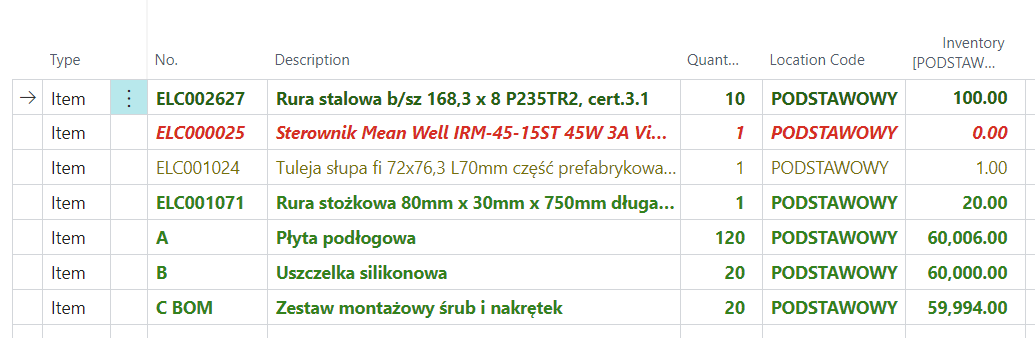
The module colors document lines automatically according to inventory levels or product availability. You can recognize available, limited, and unavailable items at a glance. You can assign colors according to specific rules.
❓ Introduction
During installation, the module initializes default settings for document line coloring. The system analyzes the required document quantity and inventory level, calculates the percentage of products that will remain after the transaction, and assigns the appropriate colors:
- Red – if the percentage falls below zero, indicating a lack of products.
- Yellow – if the percentage is between 0 and 5%, signaling a low quantity of products.
- Green – when the percentage exceeds 5%, indicating a sufficient quantity of products.
⚙️ How it works
Row highlighting considers the outstanding quantity instead of the full quantity from the document line. This means that if part of an order has already been shipped or invoiced, colors are based only on the quantity that has not yet been fulfilled.
Example: a sales order for 100 units, of which 70 have already been shipped. The row color is calculated based on the remaining 30 units, not the full 100. This ensures the availability picture on documents is always up to date and reflects actual demand.
📋 Supported Documents
Row highlighting is available on the following document types:
- Sales — sales quotes, orders and invoices
- Purchase — purchase orders and invoices
- Transfers — transfer orders
- Production — production order components, production order lines
- Service — service lines
- Assembly — assembly order lines
- Projects — project planning lines, project journals
- Invt. Receipts — inventory receipt lines
- Invt. Shipments — inventory shipment lines
🚀 How to enable the module
Each document type has an independent coloring rule. On the N24I | Settings - Advanced Inventory page → Open document coloring rules, you can enable highlighting and set thresholds for individual documents.