Setting Up Planned Data Change
This guide explains how to set up and use the Planned Data Change feature to schedule future data changes in Business Central.
📋 Prerequisites
Before using Planned Data Change, ensure:
- The N24 Advanced Queues extension is installed
- You have the appropriate permissions to create and manage delayed data change tasks
- Email setup is configured if you want to receive error notifications
🛠️ Creating and Managing Tasks
Accessing the Task List
- Search for AQ | Planned Data Change in the search box
- Or navigate through the action from ⚙️ AQ | Advanced Queues Setup
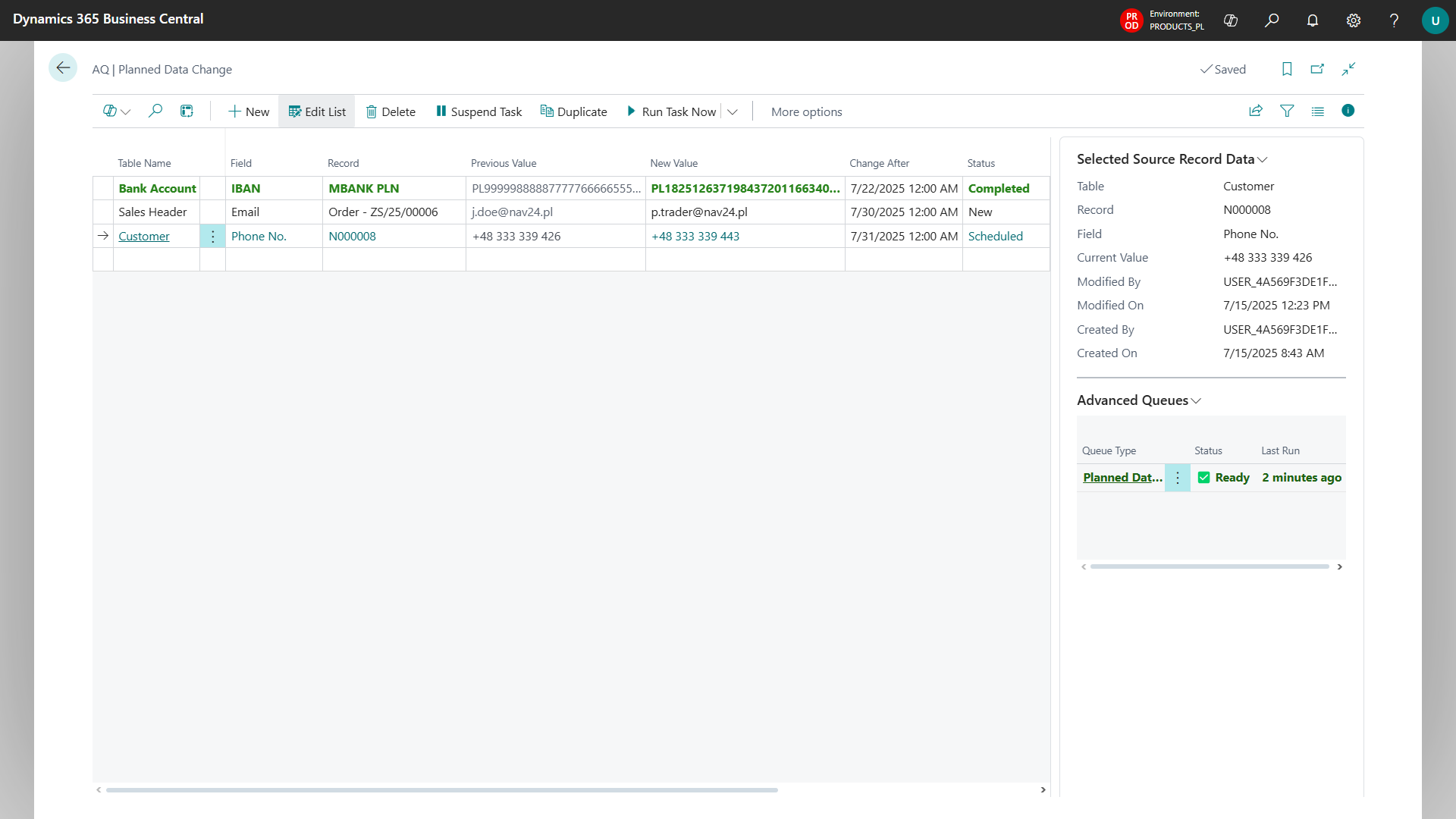
Creating a New Task
- On the Planned Data Change page, click New
- Select the table containing the record you want to modify
- Choose the specific field you want to change
- Select the record to be modified
- Enter the new value for the field
- Set the date in the Change After field
- Run Schedule action to schedule the task
Managing Existing Tasks
From the task list, you can:
- Suspend: Return a scheduled or errored task to "New" status for editing
- Duplicate: Create a copy of an existing task
- Delete: Remove tasks that are no longer needed
✉️ Setting Up Email Notifications
To receive error notifications:
Ensure an email account is assigned to the "N24 🔹 Queue Error Notification" scenario:
- Open Email Scenario Assignment page
- Find email account you want to send from the notifications
- Assign the "N24 🔹 Queue Error Notification" scenario
Users must have a valid email address in either:
- Authentication Email
- Contact Email
⚙️ Queue Management
The Planned Data Change module relies on a job queue entry to process tasks:
- The queue status is displayed in a Advanced Queues factbox
- If the queue is not created/running, a notification appears at the top of the page
- Use the Create/Start Queue action from the factbox to create or start the queue
🎨 Task Status Color Coding
The task list uses color coding for easy status identification:
- New (default color)
- Scheduled (blue)
- Completed (green)
- Error (red)
⚠️ Troubleshooting
If tasks are not being executed as expected:
- Check that the job queue entry is running
- Verify that the task date has passed
- Ensure the new value is compatible with the field type
- Check for any error messages on tasks with "Error" status
If error notifications are not being received:
- Verify email scenario configuration
- Check that your user record has a valid email address
- Look in your email spam/junk folders