Profit & Loss Statement Settings
Configure a profit and loss batch, its structure, calculations, and data filters.
⚙️ Batch selection
To define Profit & Loss Statement, start by creating a batch just like with the Balance Sheet.

Inserting the Default Structure
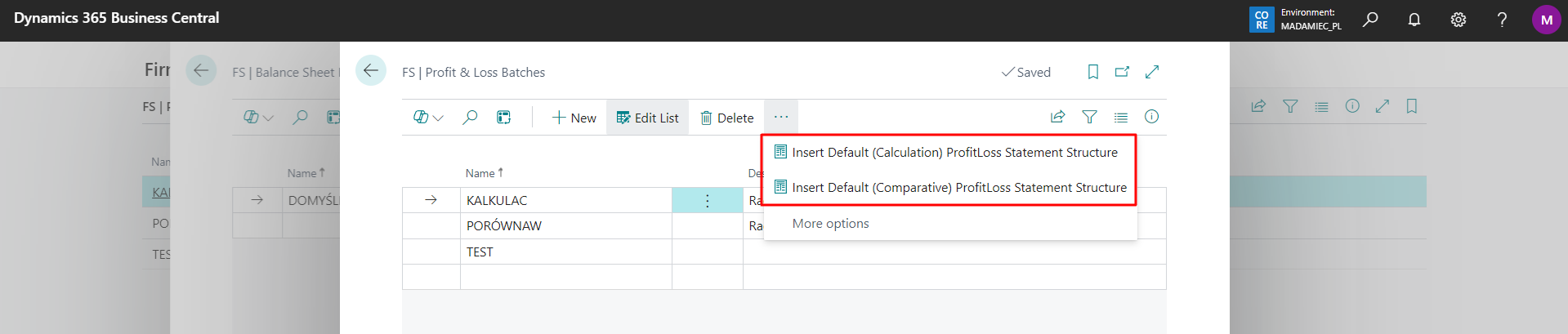
For each instance, by using the following actions:
- Insert Default P&L Structure (Calculative)
- Insert Default P&L Structure (Comparative)
we can assign a ready-made P&L (Profit & Loss) structure. From this level, we can also decide whether we want to load the structure in PLK or ENU language.
🧩 Structure
The next step is to prepare its structure. To do this, go to the Profit & Loss Statement report.

Once launched, a screen will be displayed to operate the report.
Tip
When opening the Profit and Loss Statement, a check is performed to see if all accounts have been used. If not, a message will appear with the option to open the list of accounts that have been omitted.
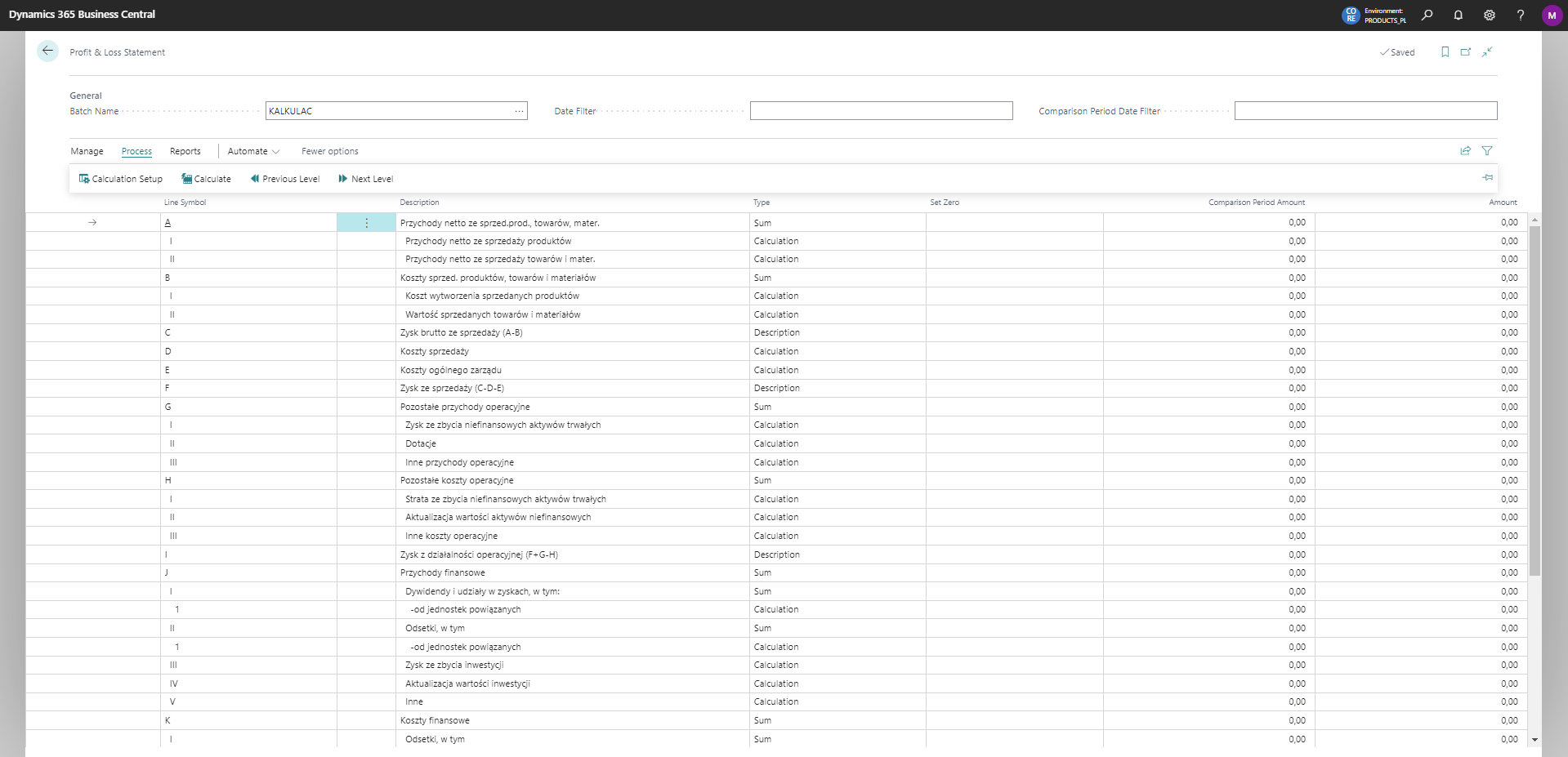
The following fields appear in the header section:
Batch Name – the name of the account variant (instance)
Date Filter – a filter that allows you to specify a date range for calculating values
Comparison Period Date filter – the filter of the period with which we want to compare the period indicated in the Date Filter
Other additional columns in the Profit & Loss Statement:
End of page - the highlighted item will be the last line of the preceding page
Desc. when the amount is negative - when the column is completed, and the value of the line is negative, this description will be assigned to it
Hide - allows to hide the row on the printout
Bold Line Font - determines whether the line should have a bold font.
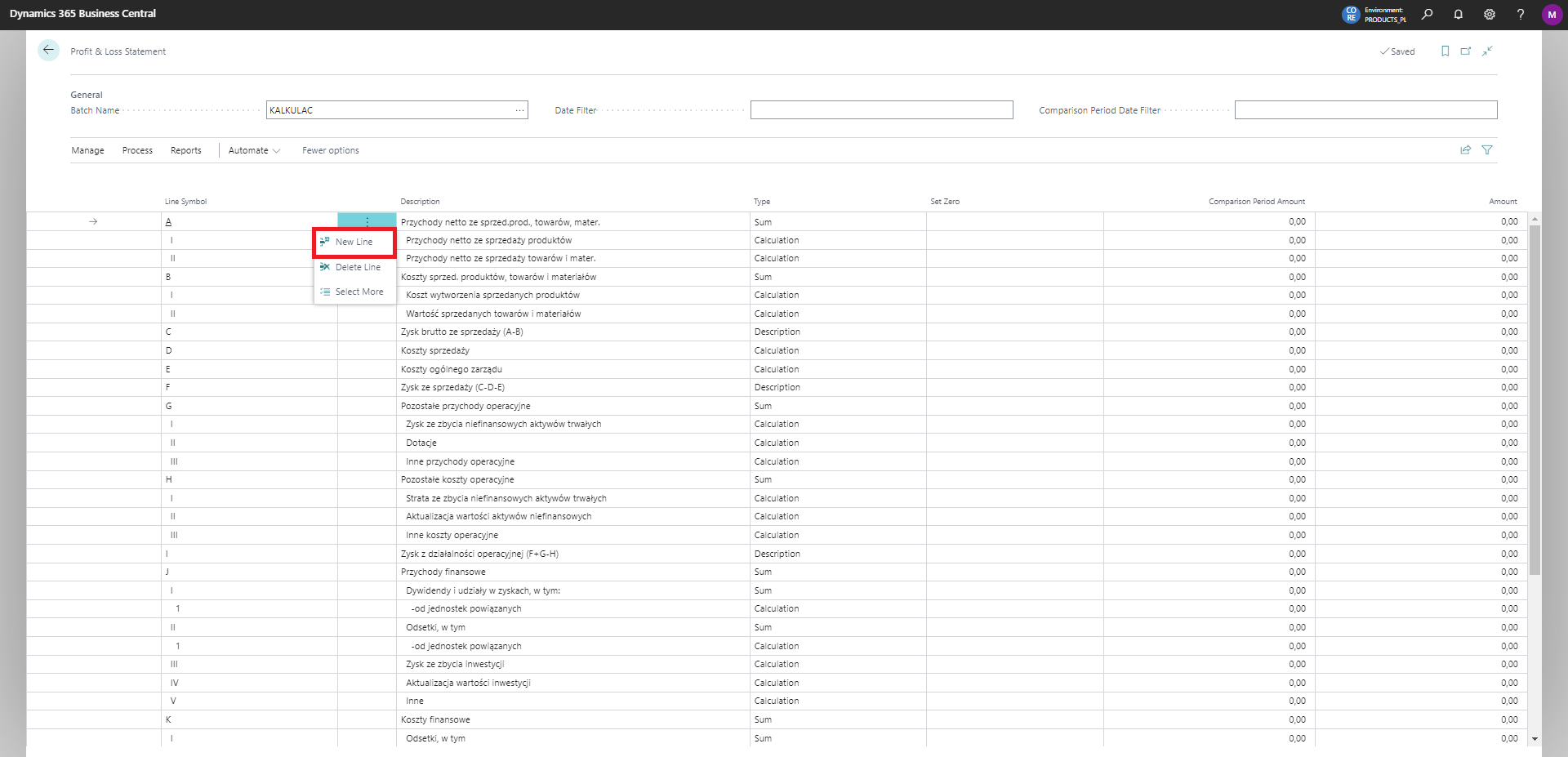
Adding lines
Adding or deleting rows, changing levels, and handling the Type field functions in the same way as when defining balance structure.
Warning
On the Profit & Loss Statement report, you can see an additional column Set Zero, which allows you to define a condition that if the amount is negative or positive, the line should show 0.
Calculation Setup
When selecting the Calculation line type, configure the calculation components using the Calculation Settings action on the action bar.
Meaning of fields:
Operation – the ability to indicate whether a calculation is to be a positive or negative operation
Amount Type – the amount from the selected source that will be shown on the line:
Net Change – account turnover for the specified period
Negative Net Change – balance value at date, only when the balance is positive
Positive Net Change – balance value at date, only when the balance is negative
Source Type – specifying which source the system will use to show the calculation component:
G/L Account – reference directly to a single G/L Account
G/L Account Filter – reference to a range of G/L accounts defined by a filter expression (e.g.
401000..401999). All posting accounts matching the filter are automatically included in the calculation — new accounts added to the chart of accounts within the filter range are picked up without any changes to the setupProfit & Loss Line – reference to another line in the Profit & Loss Statement
Source Code – based on the selected source type, indicate a specific account or line. For the G/L Account Filter type, this field serves as a descriptive label (e.g. Accounts 401).
G/L Account Filter – available only for the G/L Account Filter source type. Enter a filter expression using BC syntax, e.g. 401000..401999 or 401000|402000..402999. You can use the assist button (...) to open the account list and select accounts — the filter will be built automatically.
Tip
To quickly add multiple G/L accounts to a single calculation line, use the Add Multiple G/L Accounts action on the action bar. Select any number of accounts from the list — each will be inserted as a separate calculation line with a + operation.
Filtering by dimensions
In the solution, an option has been added to calculate the balance of the Profit and Loss Statement according to the dimensions defined in the Filter totals by. Wanting to use this option, you need to define the appropriate dimension in the mentioned filter, and then use the Calculate action again. The balance of the Profit and Loss Statement will be updated.