Payroll Import
The payroll import feature allows you to quickly transfer payroll data from external systems into the General Journal in Business Central. The process is simple, intuitive, and available directly from the journal view.
📋 Supported File Formats
You can import data from two file types:
Excel Files
- Format: .xlsx or .xls
- Row 1: column headers (e.g. Posting Date, G/L Account No., Description, Debit Amount, Credit Amount, Dimensions...)
- Row 2 and below: data to import
- Recommended encoding: UTF-8
CSV Files
- Text format: .csv
- Field separator: semicolon (;)
- Row 1: column headers
- Row 2 and below: data
- Encoding: UTF-8
🗃️ Data Structure
Your file should contain the following columns (header names can vary, content matters):
| Column | Description | Type | Required |
|---|---|---|---|
| Posting Date | Transaction date | Date | Optional* |
| Line Type | Account type (leave empty for G/L) | Text | Optional |
| Document No. | Document number | Code[20] | Optional* |
| G/L Account No. | General Ledger account number | Code[20] | Required |
| Description | Transaction description | Text[50] | Required |
| Debit Amount | Debit side amount | Number | Optional |
| Credit Amount | Credit side amount | Number | Optional |
| Dimension Value 1 | First dimension value code | Code[20] | Optional |
| Dimension Value 2 | Second dimension value code | Code[20] | Optional |
| Dimension Value 3 | Third dimension value code | Code[20] | Optional |
If not provided in the file, values will be taken from settings or entered during import.
⚙️ Dimension Setup
Before your first import, configure dimensions in N24 Core Extension Setup:

In the Payroll Import section, set:
- Payroll Dimension 1
- Payroll Dimension 2
- Payroll Dimension 3
Important: You only need to configure dimensions if your import file contains data in the corresponding dimension columns. The system will check the configuration during import and display an error only when:
- The file contains values in a dimension column (e.g., Dimension 1), but
- The corresponding dimension is not configured in the setup
This allows you to import data without having to configure all three dimensions if you don't use them.
📥 How to Import Data
Start the import from the General Journal:
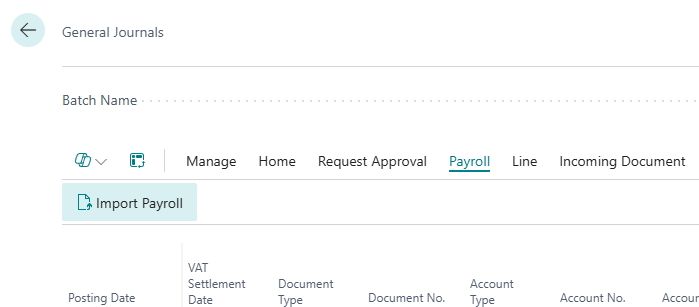
Import Steps:
- In the General Journal, select the action N24C | Import Payroll (Excel) or N24C | Import Payroll (CSV)
- Choose the file to import
- If needed, set default values (date, document, dimensions)
- The system will automatically recognize headers and allow you to map fields
- Confirm import – data will be added to the journal
📤 Export Sample File
You can generate a sample Excel file with the correct structure:
- Go to N24 Core Extension Setup
- In the Payroll Import section, click Export sample file
- You will receive a file with sample data and headers
📘 Examples and Scenarios
Scenario: Monthly payroll import from an HR system
Need: A company uses an external HR/payroll system that generates an Excel file with payroll entries. The accountant must enter this data into the General Journal in BC every month — manually typing 200 lines takes several hours.
Steps:
- Export the payroll from the HR system to an Excel file (format: date, G/L account, description, debit, credit, cost center).
- Open the General Journal in Business Central.
- Click N24C | Import Payroll (Excel).
- Select the file — the system recognizes headers and maps columns.
- Confirm the import — 200 lines appear in the journal with correct dimensions.
- Check the balance and post the journal.
Result: Importing 200 lines takes 2 minutes instead of several hours. Dimensions (cost centers) are automatically assigned based on configuration.
Scenario: Import from a CSV file with semicolon separator
Need: The HR system only exports data in CSV format with a semicolon separator. The accountant wants to import this file without converting to Excel.
Steps:
- In the General Journal, click N24C | Import Payroll (CSV).
- Select the .csv file with payroll data.
- The system recognizes the separator (;) and column headers.
- Confirm the import.
Result: Data from CSV is loaded into the journal identically to Excel. No need to convert the file — both formats are natively supported.
Tip
Before the first import, configure dimensions in N24 Core Extension Setup. If your file doesn't contain dimensions — you don't need to configure them.