Additional Line Settings
Additional line settings display selected fields below document lines for sales, service, purchase, transfer, and warehouse documents.
- Sales
- Service
- Purchase
- Transfers
- Warehouse
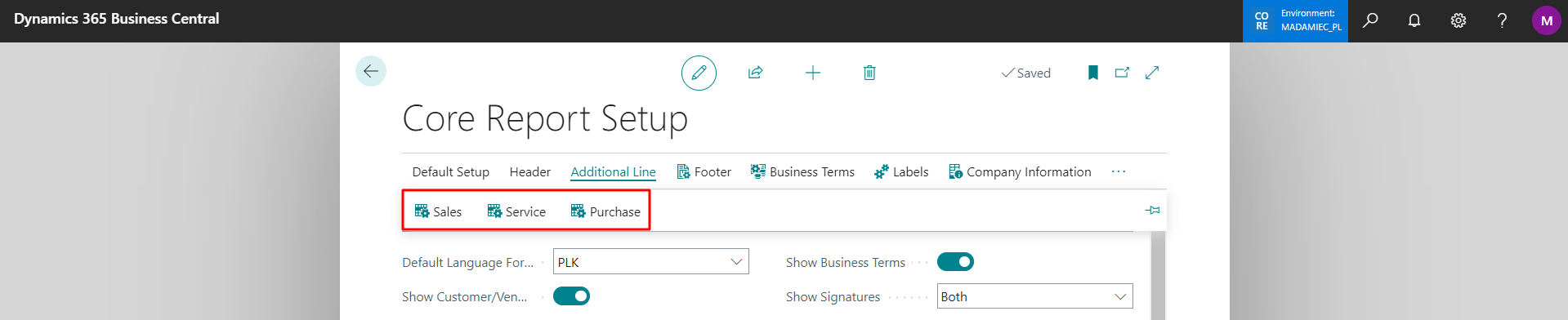
⚙️ Configuring the Additional Line for a Document
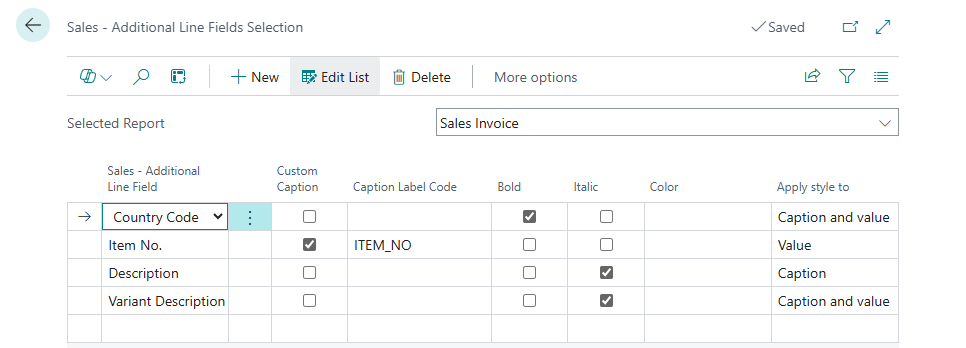
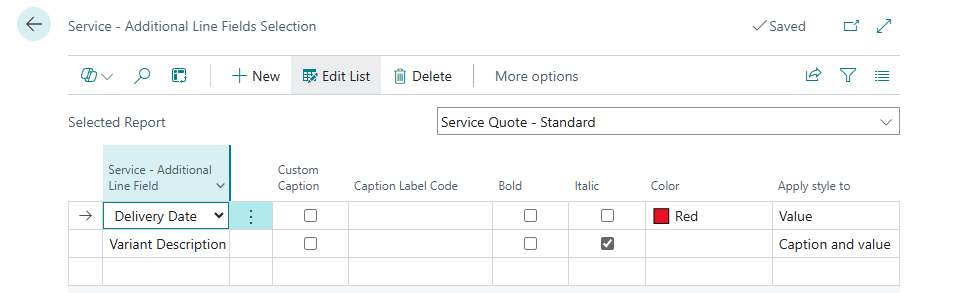
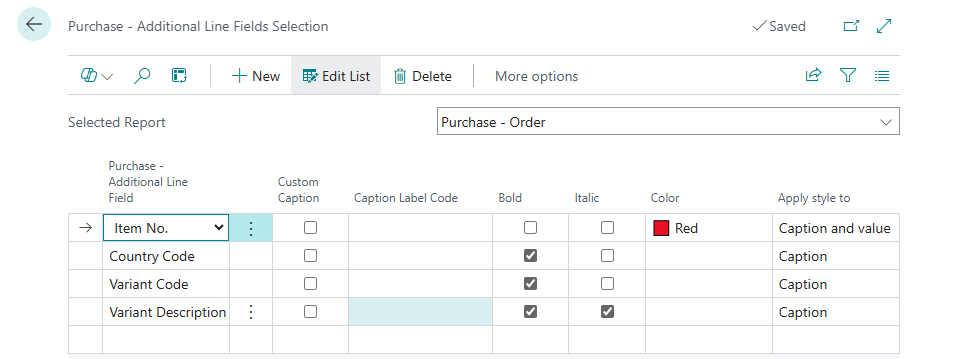
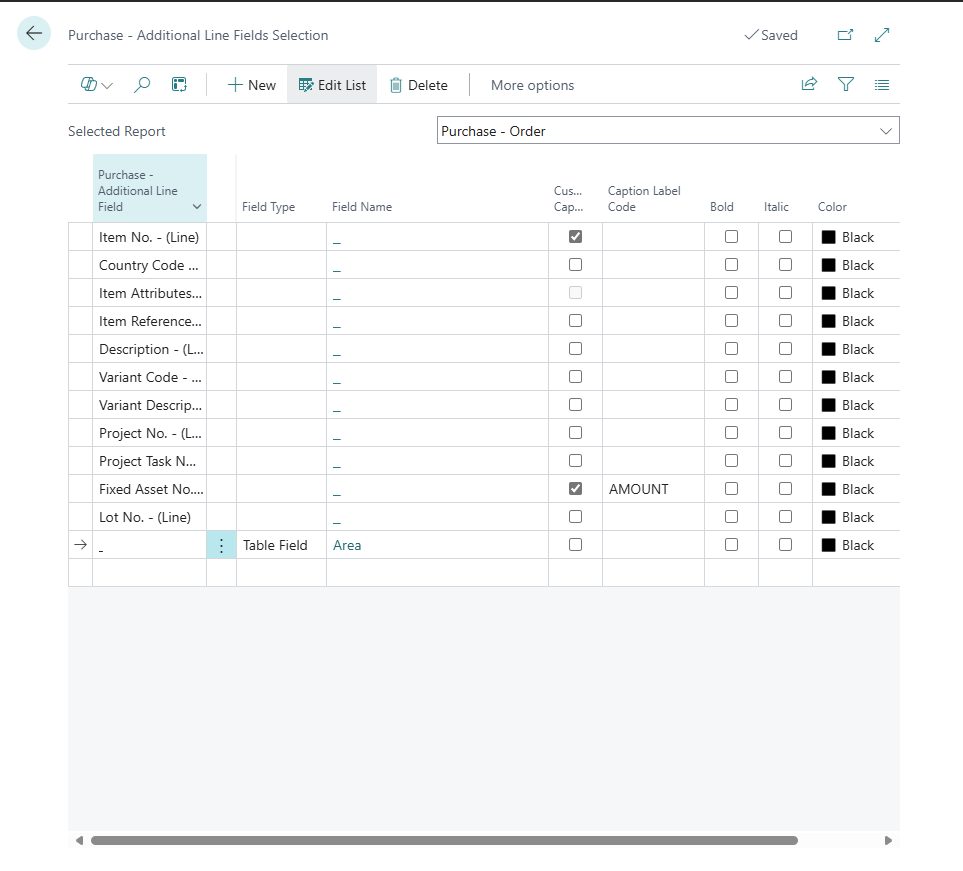
Here, you can set the fields for selected reports that should be displayed in the additional line in a specified order (the order follows the entry of fields). Standard field labels will be used as labels, but there is also an option to assign a custom label.
Sales:
Service:
Purchase:
Note
- There is no limit to the number of selected fields.
- If a defined field does not contain a value, it will be skipped during display.
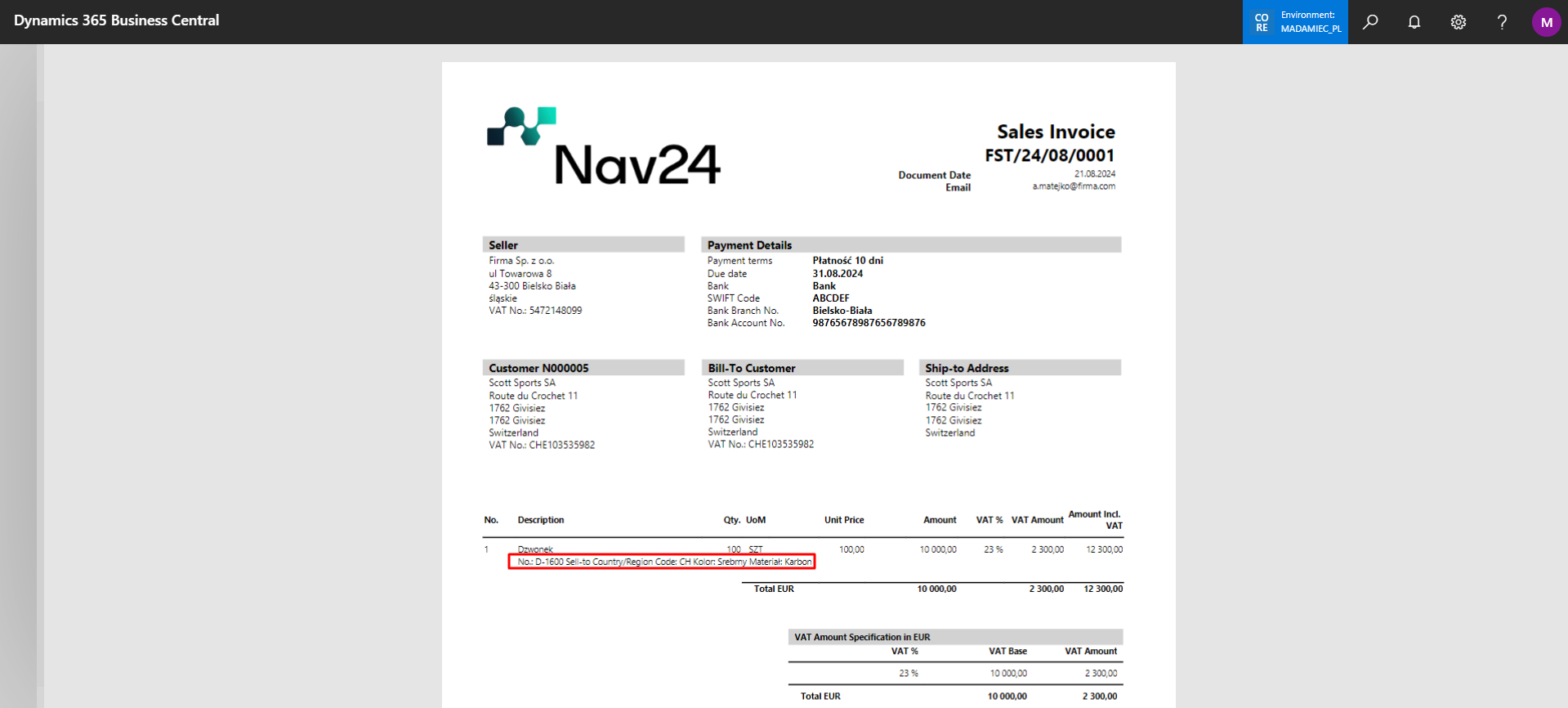
- Selected fields will be displayed consecutively, separated by the "|" character.
Custom Field Support
The configuration view contains the Field Type and Field fields. If they are not visible, add them using the Personalize feature in Business Central.
- Field Type – available options:
- Predefined – select a field provided by the module for the document type.
- Table Field – select a field from the document line table.
- New Line – move subsequent information to the next line.
- Blank Line – keep a blank line before the first or after the last additional-line item.
- Field – the selected field for the configured field type.
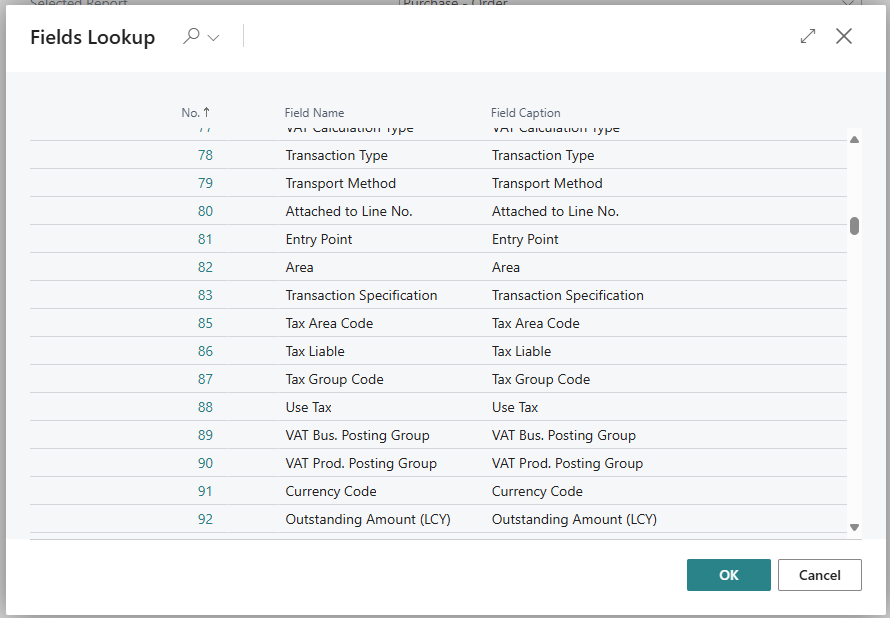
When you select Table Field in Field Type, select the Field field to open the list of fields available in the document-line table of the selected report. The selected field is read from the document line and displayed in the additional line on the printout. You can assign a Custom Caption to the field for use on the printout.
🧠 Line Breaks and Blank Lines
Use the options in the Field Type field to define the layout of information in the additional line on the printout.
- Add a line in the additional-line settings for the selected report.
- In Field Type, select New Line to display the information after this line on the next line.
- Select Blank Line to keep a blank line before the first or after the last additional-line item.
- Set the line in the required field order.
Example configuration with a custom field:
Below is a fragment of a sales invoice, showing the effect of selecting the appropriate fields on this document:
📋 Examples and Scenarios
The following example shows how to set up an EAN code in the additional line of a sales invoice.
Scenario: Displaying an EAN Code on a Sales Invoice
Need: The customer wants the product EAN (barcode) code to be visible below each line on the sales invoice printout.
Configuration:
- Open the Core Printout Setup page.
- Select Additional Line → Sales. The page for configuring additional information displayed on sales document lines opens.
- Select the Sales Invoice report.
- In the lines, set Field Type to Table Field, then select the Field field and choose EAN from the list.
Result: The sales invoice printout displays the EAN code below each line with the "EAN Code" caption. To use a custom caption, select Custom Caption and add a translated label in Caption Label Code.
Important
In this setup, the report displays the EAN code assigned directly to the invoice line. If several packages with different EAN codes are shipped within one line, only one code is displayed. Supporting multiple EAN codes requires a report modification; the report currently supports multiple values only for Lot No. and Serial No..