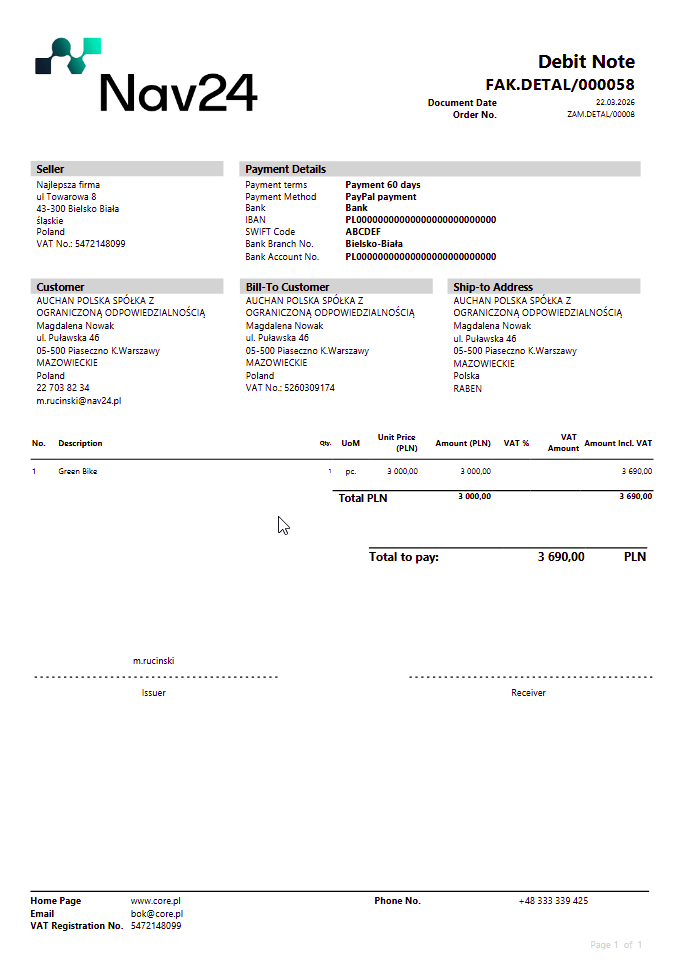
Debit Note
Sales reports should first be configured in Report Selection - Sales.
You can print the report from the list or card of Posted Sales Invoices.
The options we can set for the currently printed report are shown below:
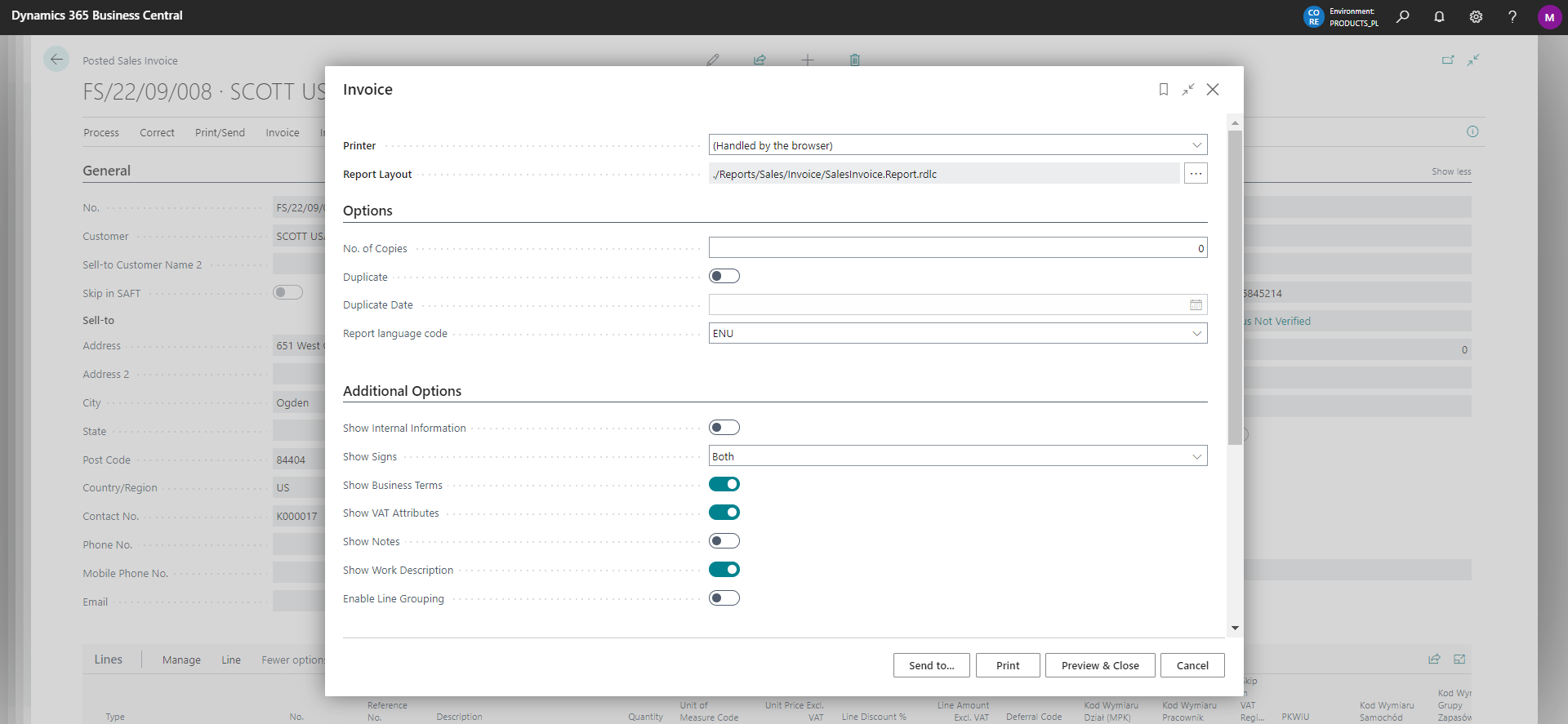
The Enable Line Grouping option allows you to group them according to the set Grouping Description. If you use this function, the unit price of the group will be equal to the sum of the group amounts, and the quantity for each group will be set to 1.
Tip
On the posted document, use N24CR | Change the line description field to modify selected fields. Learn more
🚀 Print a debit note
- Set the Debit/Credit Note field on the sales invoice.
- Print the document from the list or card of Posted Sales Invoices.
You can mark the field before posting the document or afterwards by using the standard Update Document action.
📊 Differences from an invoice printout
A debit note is printed from the same source document as a sales invoice. The document marker changes the report layout but does not change the document data or amounts.
| Area | Difference in the debit note printout |
|---|---|
| Document name | The printout header changes to Debit Note. |
| VAT clause and specification | The VAT clause, VAT specification, and VAT specification in local currency are not printed. |
| Document lines | The VAT column header and values, VAT identifier or rate, and VAT-inclusive amounts are not printed. |
| Summary | The VAT total is not printed. Document amounts and the total amount due remain unchanged. |
Tip
In the general CORE Printouts settings, select the number series for automatic marking of Debit Notes in the Accounting Notes section. Learn more
|