Sales Invoice
The sales invoice report can be run from the list or the posted sales invoice card.
📈 Lines Without Discounts
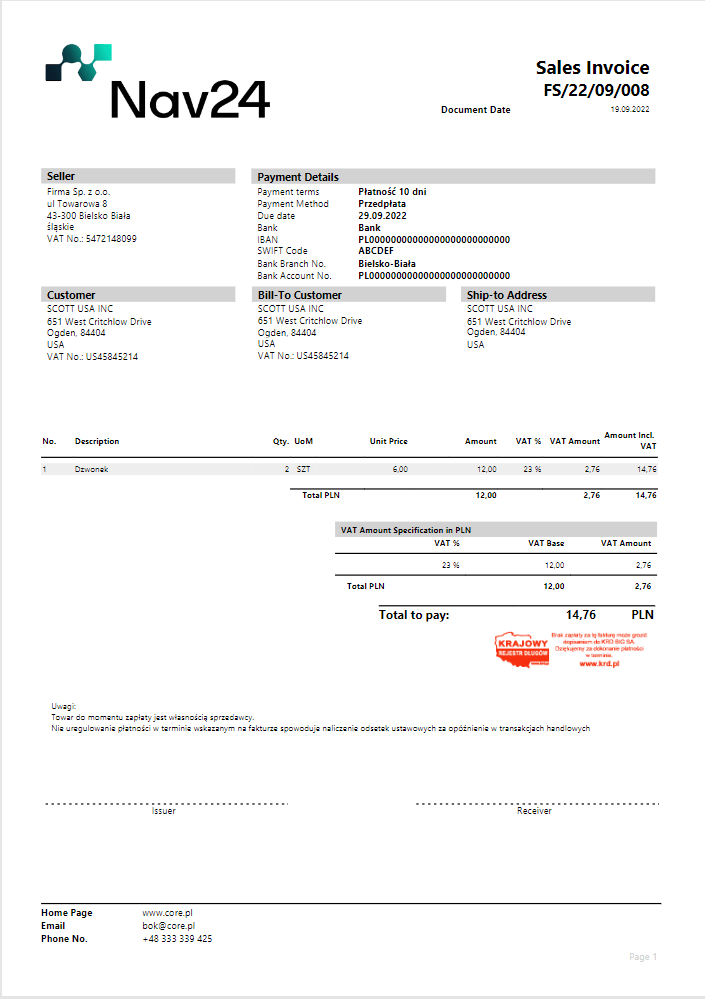
On printouts without discounts, the line description and amounts appear in wider columns. This makes document line data easier to read.
Sales reports should first be configured in Report Selection - Sales.
Printing of the report is possible both from the list and card Posted Sales Invoices.
The options we can set for the currently printed report are shown below:
⚙️ Request Page Options
On the request page, you can control the printout content and the PDF files appended to the result.
| Field | Effect |
|---|---|
| No. of Copies | Specifies the number of document copies to print. |
| Duplicate and Duplicate Date | Add a duplicate designation and let you specify its date. |
| Report language code | Specifies the printout language. |
| Show Internal Information | Shows dimensions and G/L account numbers on the printout. |
| Show Signs, Show Business Terms, Show Notes, and Show Work Description | Control whether these elements appear on the printout. |
| Attach Business Terms PDF | Appends the business terms PDF to the report output when business terms are available. |
| Show VAT Attributes and Show VAT Spe. For LCY Currency | Control additional VAT information on the printout. |
| Show Total To Pay | Shows the remaining amount to pay. |
| Show Prepayment Date | On a prepayment invoice, replaces the sales date with the prepayment date. |
| Append Related Shipment PDF | Appends the related shipment PDF when printing or previewing the invoice. |
| Show Bill-to Section and Show Ship-to Section | Control whether bill-to and ship-to details appear in the printout header. |
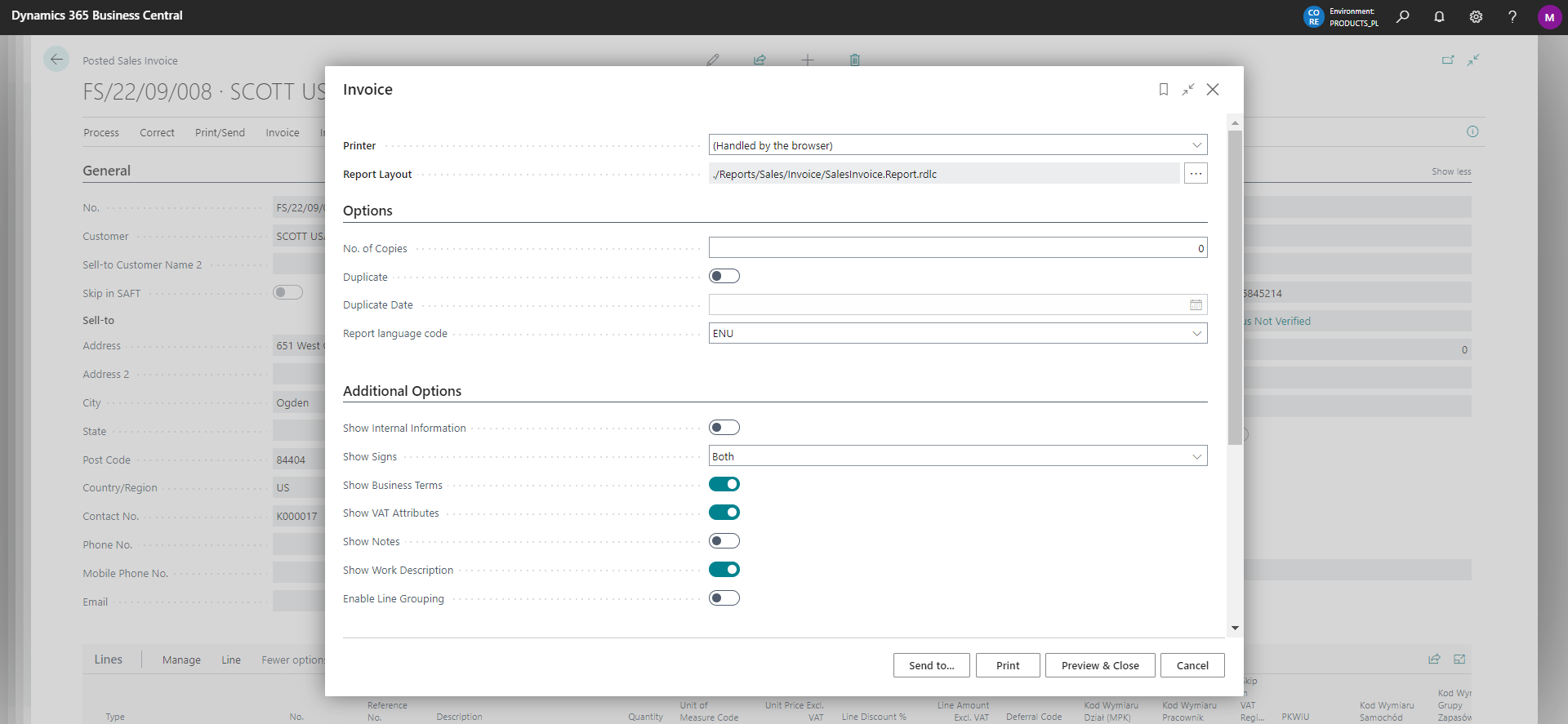
The Enable Line Grouping option allows you to group them according to the set Grouping Description. If you use this function, the unit price of the group will be equal to the sum of the group amounts, and the quantity for each group will be set to 1.
Tip
On the posted document using the action N24CR | Change the line description field we can modify selected fields. Learn more
Note
When Posted Sales Invoice is marked as Prepayment Invoice, a description Sales - Prepayment Invoice is added to the header. In addition, if we have Order No. selected in the header field selection, in this case, Prepayment Order No. will appear here.
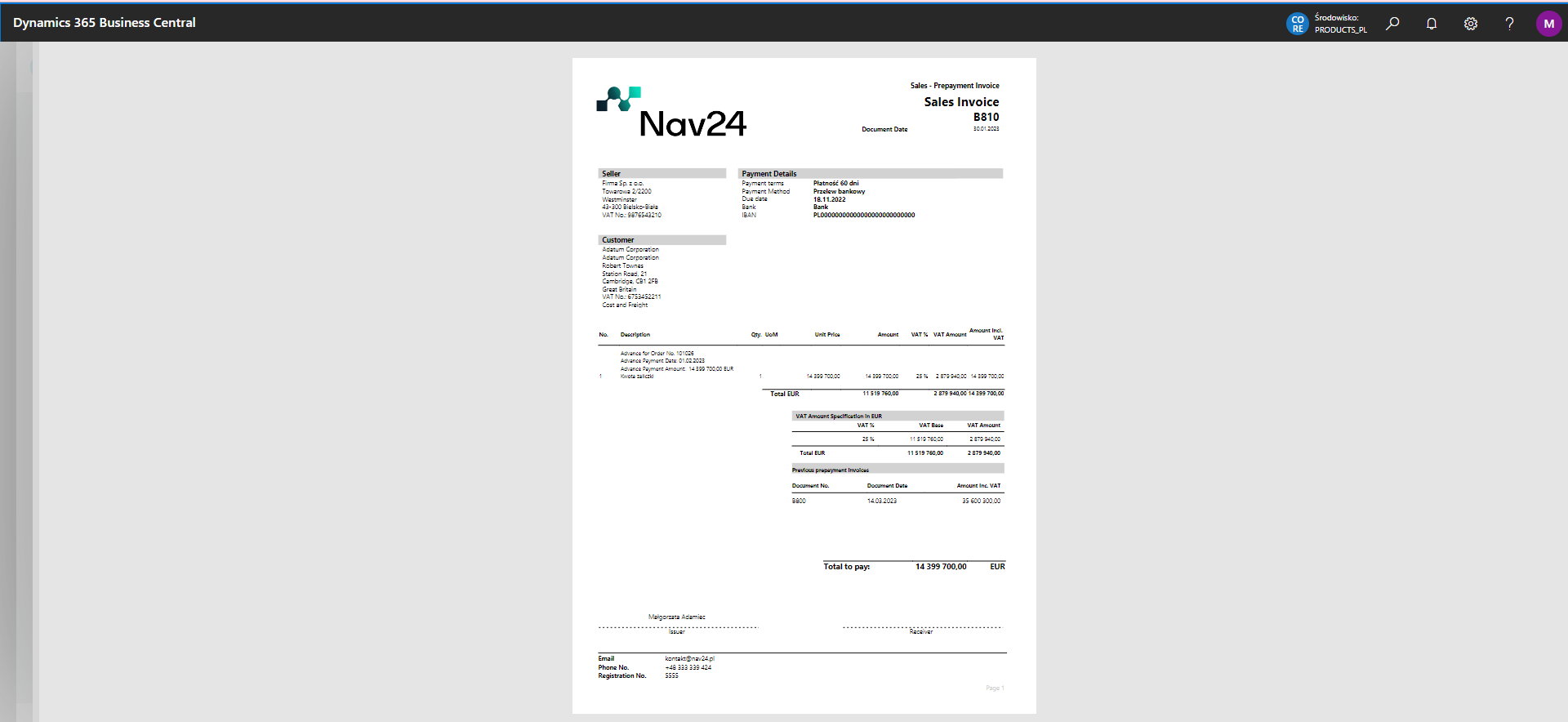
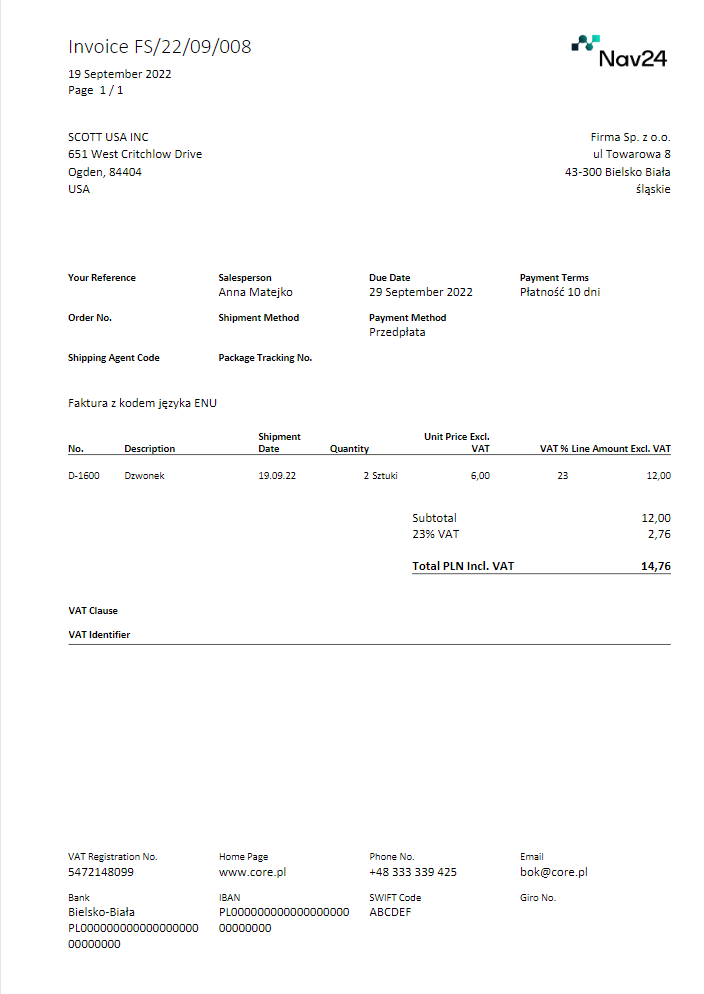
Example preview of the report (comparison of the standard version to Core Reports):
|
|