Barcode fonts
Barcodes on labels come from fields in the Word layout. The module currently encodes the GTIN value automatically as Code 39.
Note
In Business Central SaaS, IDAutomation fonts are available in the service. For on-premises environments, purchase and install the fonts on the Business Central Server.
❓ How a barcode is created
- In a label layout, add the GTIN field from
N24LBLLabelEntryas a plain-text content control. - Select the content control in Word and assign the
IDAutomationHC39MorIDAutomationC39Mfont. - When printing, the module prepares the GTIN value for Code 39 and Word renders it with the selected font as a barcode.
For example, the GTIN value 5901234123457 printed with IDAutomationHC39M produces a Code 39 barcode with human-readable text. IDAutomationC39M produces the same barcode without the text.
Note
Word does not show the finished barcode in the editor. The correct barcode image appears in the Business Central printout.
⚙️ Module support
| Word layout field | Print-time encoding | Font to use | Example value |
|---|---|---|---|
| GTIN | Code 39 | IDAutomationHC39M or IDAutomationC39M |
5901234123457 |
| Barcode 1 No. | No automatic encoding | Do not use for a barcode without preparing the value yourself | ABC-001 |
| Barcode 2 No. | No automatic encoding | Do not use for a barcode without preparing the value yourself | SERIES/2026/001 |
Barcode 1 No. and Barcode 2 No. are available to the layout, but the module does not currently encode them as Code 128 or GS1-128. Assigning a Code 128 font alone is not enough to create a valid barcode.
ℹ️ Font sizes
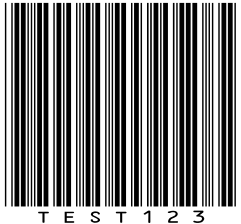
Each font can end with XS, S, M, L, XL, XXL, which represent barcode height—from the smallest (XS) to the largest (XXL). The suffix does not change the symbology or encoded value. Example for Code39:
| XS | XXL |
|---|---|
 |
 |
📋 Available symbologies and fonts
Business Central provides the following font families. In N24 Labels, automatic encoding currently supports only Code 39 for the GTIN field.
| Symbology | Use | Font with human-readable text | Font without human-readable text | Module status |
|---|---|---|---|---|
| Code 39 | Alphanumeric values, such as ABC-001 |
IDAutomationHC39M |
IDAutomationC39M |
Supported for GTIN |
| Code 93 | Compact alphanumeric values | Not available | IDAutomationC93M |
Font available, no automatic encoding |
| Codabar | Values with a restricted character set | IDAutomationHCBM |
IDAutomationCBM |
Font available, no automatic encoding |
| Code 128 | High-density alphanumeric values | IDAutomationHbC128M |
IDAutomationC128M |
Font available, no automatic encoding |
In Word, type or paste the exact name of the selected font manually.
🧾 Two-dimensional barcodes available in Business Central
For all supported symbologies and their constraints, see Barcode Fonts with Business Central Online. For the report-field preparation steps, see Adding Barcodes to Reports.
Warning
Using a font other than Code 39 for GTIN, or using Barcode 1 No. and Barcode 2 No., does not produce a valid barcode because the module does not prepare those values.
Code39
Fonts with human-readable text under the barcode
IDAutomationHC39XXLIDAutomationHC39SIDAutomationHC39MIDAutomationHC39LIDAutomationHC39XLIDAutomationHC39XS
Fonts without human-readable text under the barcode
IDAutomationC39XSIDAutomationC39SIDAutomationC39MIDAutomationC39LIDAutomationC39XLIDAutomationC39XXL
Code_93
- Fonts without human-readable text under the barcode
IDAutomationC93XSIDAutomationC93SIDAutomationC93MIDAutomationC93LIDAutomationC93XL
Codabar
Fonts with human-readable text under the barcode
IDAutomationHCBXSIDAutomationHCBSIDAutomationHCBMIDAutomationHCBLIDAutomationHCBXLIDAutomationHCBXXL
Fonts without human-readable text under the barcode
IDAutomationCBXSIDAutomationCBSIDAutomationCBMIDAutomationCBLIDAutomationCBXLIDAutomationCBXXL
Code 128
Fonts with human-readable text under the barcode
IDAutomationHbC128XSIDAutomationHbC128SIDAutomationHbC128MIDAutomationHbC128LIDAutomationHbC128XLIDAutomationHbC128XXL
Fonts without human-readable text under the barcode
IDAutomationC128XXSIDAutomationC128XSIDAutomationC128SIDAutomationC128MIDAutomationC128LIDAutomationC128XLIDAutomationC128XXL