Start Page
Description of the start page and access to N24 Payment Reminder settings in Business Central.
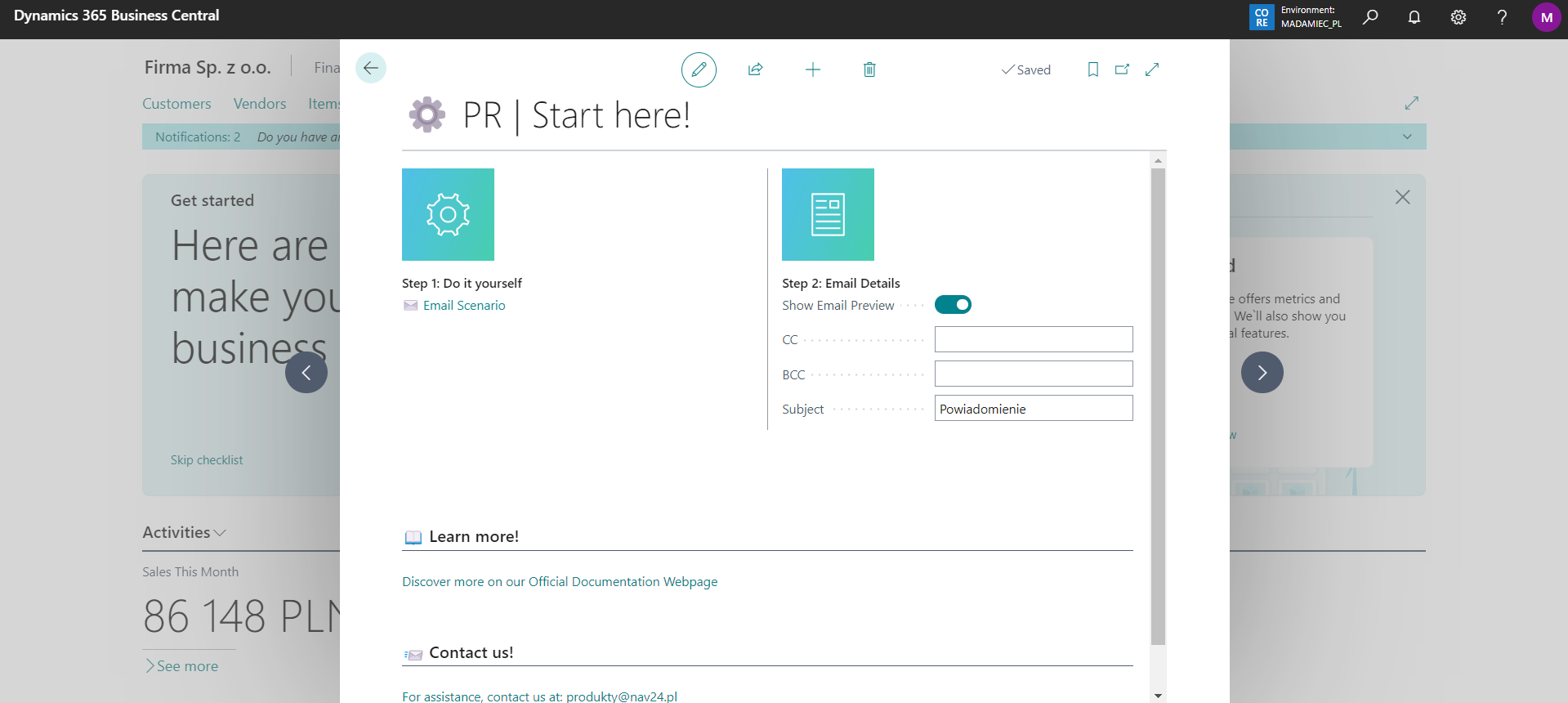
First, check whether an email account is assigned to N24PR🔹Unpaid Invoices Reminder. If not, use Assign Scenario to assign an account.
In the second step, you can decide whether you want the default email template editor to open before each sending or if the email should be sent immediately after using the action on Customer Ledger Entries. You can also set global values here that will be populated into each payment reminder email, such as:
- CC - CC recipients,
- BCC - BCC recipients,
- Subject - email subject,
- Notification Date Formula - sets the due-date cutoff relative to the day the process runs.
-3Dincludes invoices due at least three days ago,+1Dincludes invoices due through tomorrow, and0Dincludes invoices due through today, - Customer Filter for Notifications - filter criteria to limit which customers receive automatic reminder notifications. Define customer selection based on attributes like posting groups, country codes, etc. When empty, all customers with unpaid invoices are included. Click the assist button (three dots) to configure filters.
Warning
All these values can be modified directly before sending the email, BUT only if the Show Notification Preview checkbox is selected. Otherwise, it is not possible to edit the content of the sent message.