How to customize your home page?
This guide explains how to set up a custom home page and configure sections and tiles in Business Central.
⚙️ Setting the page as default
To ensure our home page opens by default in Business Central, follow these steps:
Assign the N24 | Custom Role Center role to the selected users:
- Open User Settings, select a user, and click Manage → Edit from the action bar.
- Click ... next to the Role field and select N24 | Custom Role Center.
Once the role is assigned, the user will see a blank home page upon logging into Business Central, ready for customization.
🧩 Adding pre-made elements
The home page includes pre-configured sections that can be easily added:
- Navigate to the home page and click the gear icon in the top-right corner.
- Select the Personalize option and wait a few seconds for all elements to load.
- Hidden elements, marked with diagonal lines, can be added to the page:
- Click the desired element and then select Show.
- The lines will disappear, indicating that the element is now visible.
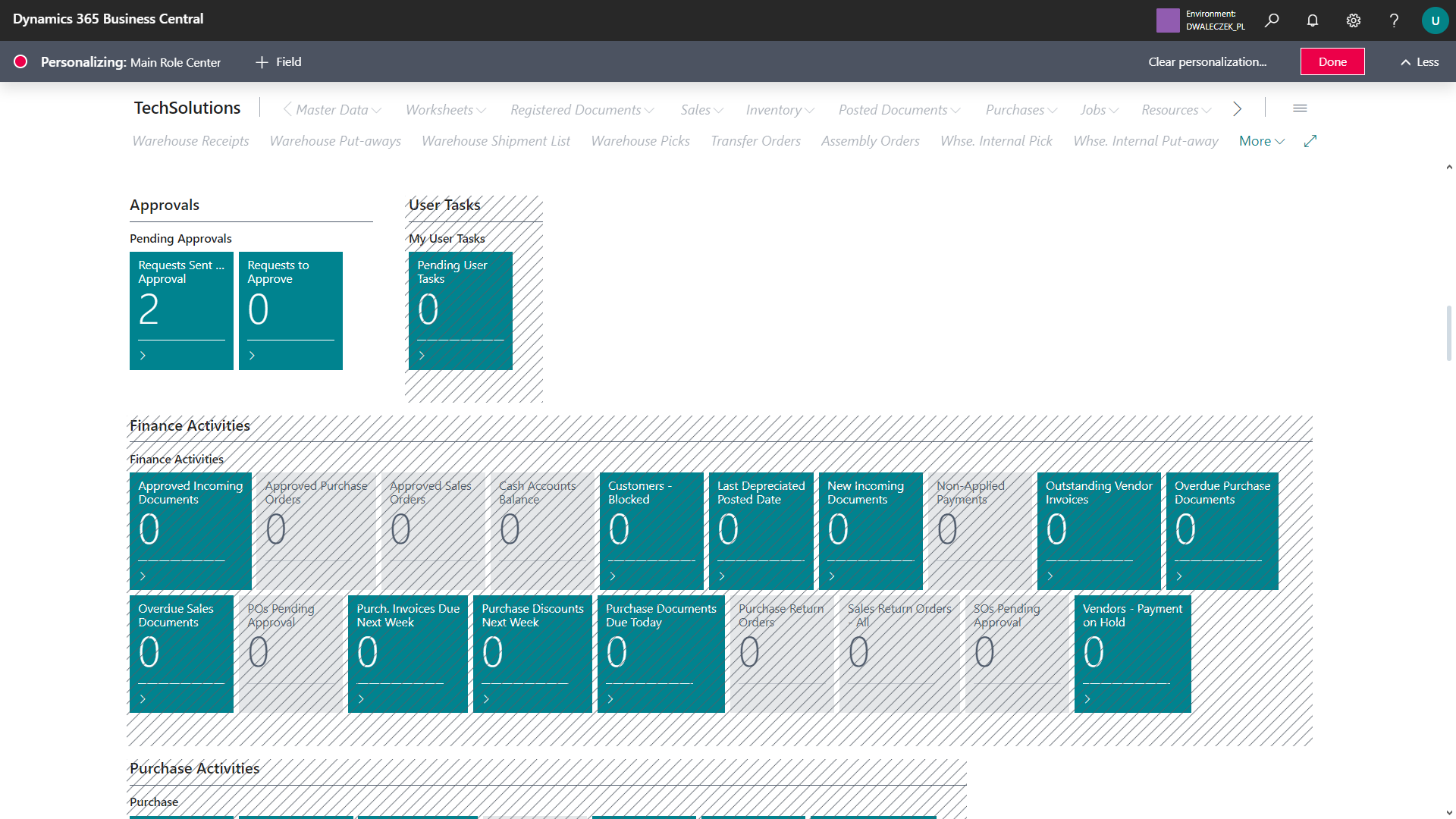
- To move sections, drag them to the desired location by holding the left mouse button on the red triangle. A red line will indicate the available drop zones.
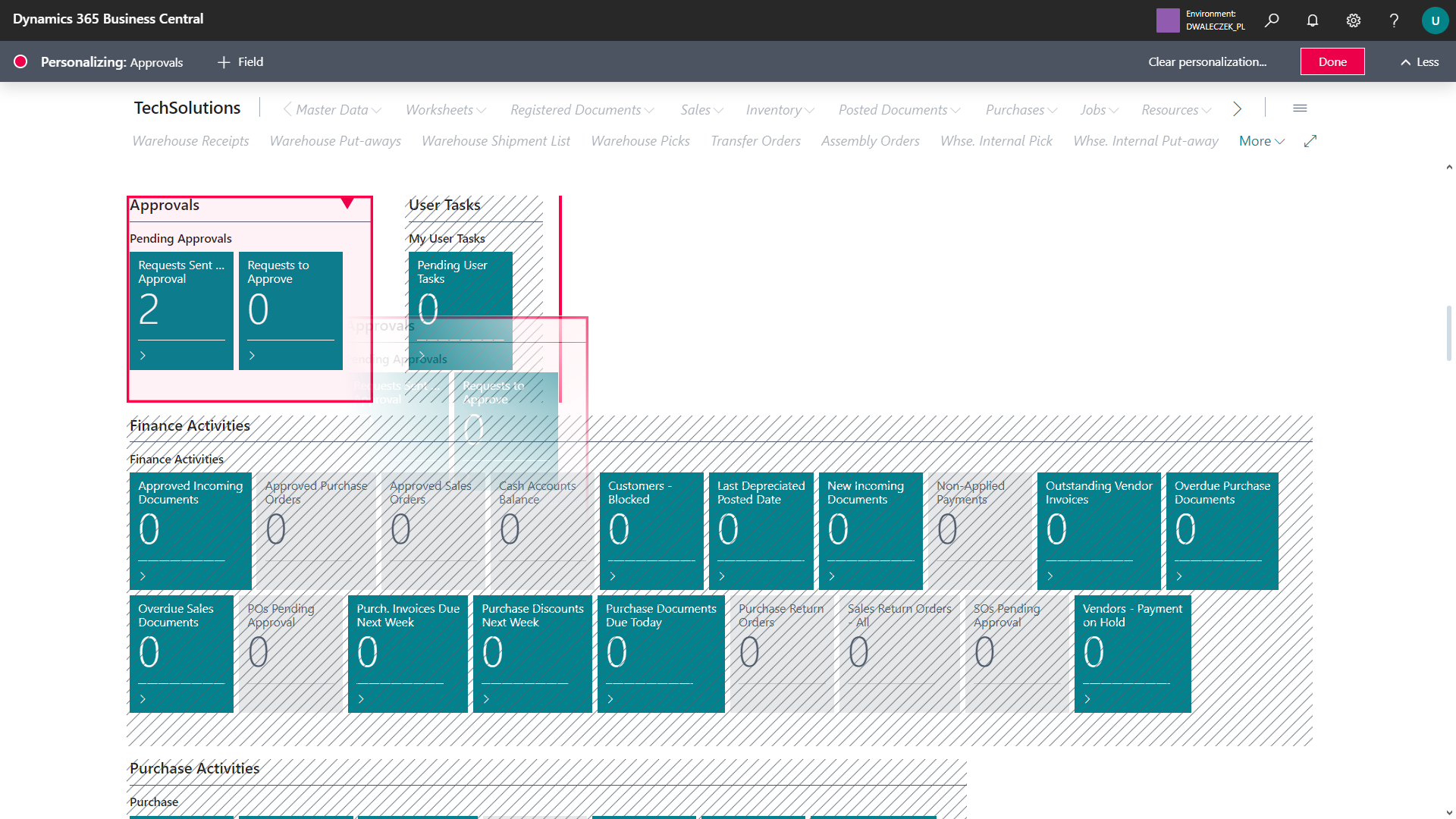
- When finished, click the red Done button to save the changes.
🎨 Adding custom tiles
You can add up to five custom tiles to the home page:
- Search for N24 | Home Page Setup in the search bar.
Tip
You can also access the setup page directly from the home page — click the Customize action in the custom tiles section.
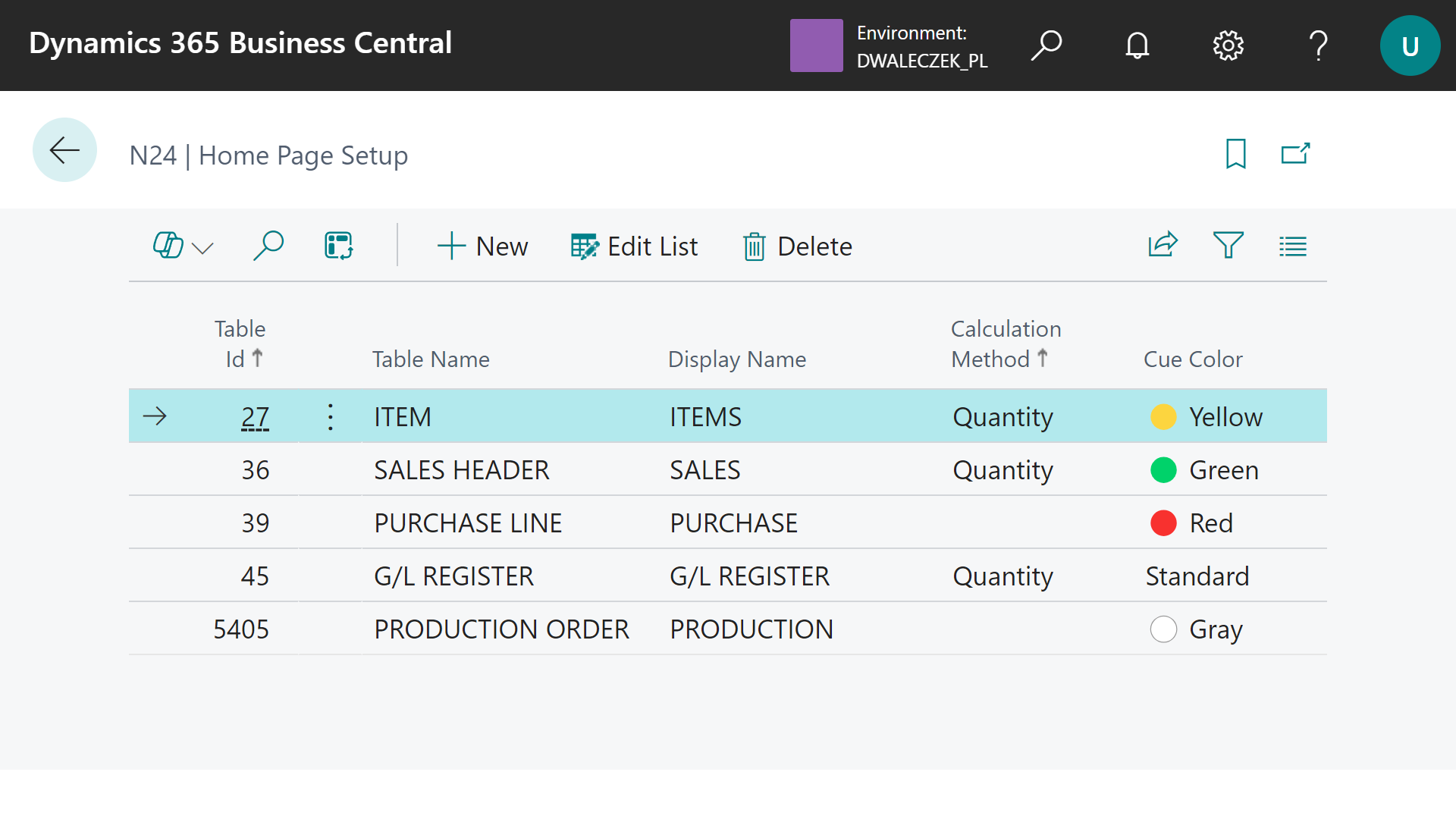
- On the opened page, select the table whose data will be displayed.
- In the Name on the Role Center field, click to open the translations page. Add a display name for each language your users work in. The name will appear on the tile on the home page.
- In the Calculation Method field, choose the calculation method:
- Quantity — displays the total number of records in the table
- Sum — displays the sum of values from a selected field for all records
- Leaving the field empty will cause the tile not to be displayed.
- If you selected the Sum method:
- In the Field No. field, select a numeric field to be summed
- The Field Name field will automatically display the name of the selected field
- In the Table Filter field, you can specify additional filtering conditions for records (optional):
- Click in the field to open the standard Business Central filtering dialog
- Use the graphical interface to set filters on the selected table
- The dialog allows filtering by any fields from the table using standard BC operators
- In the Cue Color field, select a color:
- Standard — default color
- 🟢 Green
- 🔴 Red
- 🟡 Yellow
- ⚪ Gray
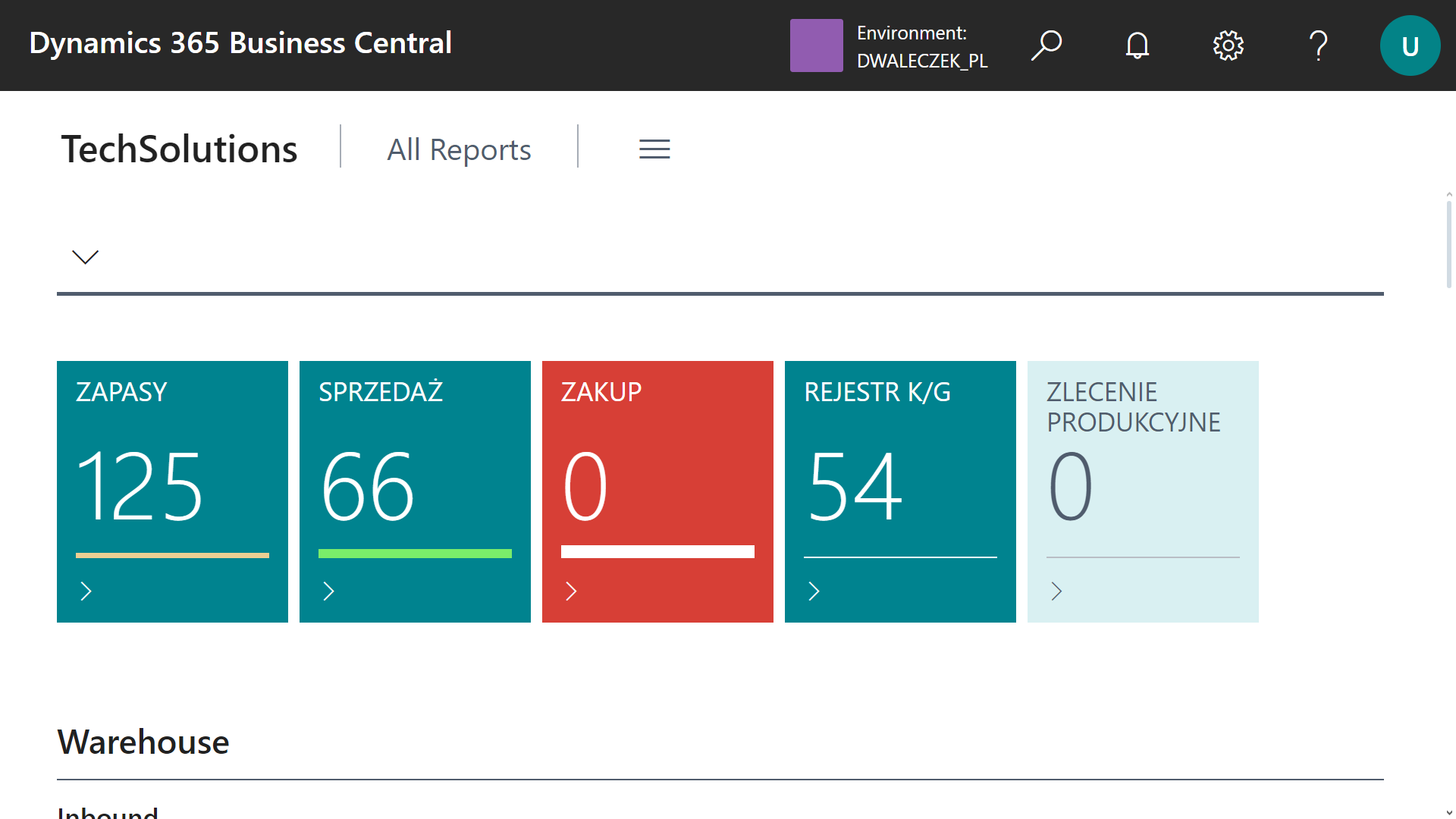
- Once configured, the tiles will appear on the home page.
📞 Contact and support
If you need help with configuration or have questions about this module, contact us.