Automatic Entry Processing
Automate Shop Floor import and posting with Job Queue. Use the graphical Queue Management Panel or standard Business Central job queue for scheduling.
📖 Introduction
Business Central offers advanced business process automation capabilities through job queuing mechanisms. We present two complementary approaches to queue management:
- Shop Floor Queue Management Panel - intuitive graphical interface
- Standard Job Queue Configuration - advanced technical configuration
Process automation for import and posting helps save time, minimize human errors, and ensure regular operation execution without manual intervention.
📊 Shop Floor Queue Management Panel
To simplify Shop Floor queue management, we've introduced a central management system, available on the Shop Floor Setup page.
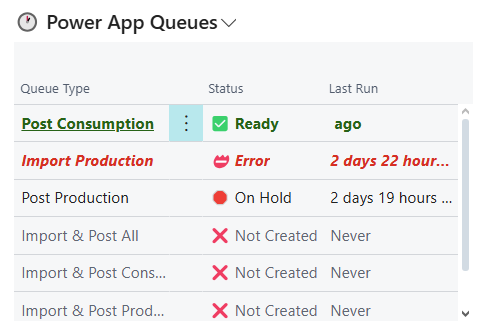
Panel Features
- Access to all available Shop Floor queues in one place
- Quick creation of new queues
- Starting and stopping queues
- Opening queue details
- Operation status monitoring
- Tracking time since last queue execution
- Automatic settings validation (Automatic Import & Automatic Posting fields)
Using the Management Panel
After opening the information panel, you can perform the following operations:
Create Queue - select the appropriate item and use the creation option
Start Queue - select a queue and click the start button
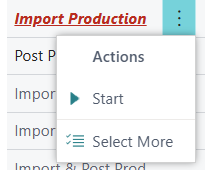
Stop Queue - select an active queue and click the stop button
View by Type - click on Queue Type to display all queues of that type
⚙️ Technical Job Queue Configuration
For users requiring more detailed control, you can configure standard Job Queues in Business Central.
Available Operation Parameters
| Parameter | Description |
|---|---|
OUTPUT_IMPORT |
Import output entries to journal. |
OUTPUT_POST |
Post existing output entries from journal. |
CONSUMPTION_IMPORT |
Import consumption entries to journal. |
CONSUMPTION_POST |
Post existing consumption entries from journal. |
OUTPUT_IMPORT_WITH_POSTING |
Import output entries to journal and post automatically. |
CONSUMPTION_IMPORT_WITH_POSTING |
Import consumption entries to journal and post automatically. |
OUTPUT_AND_CONSUMPTION_IMPORT_WITH_POSTING |
Import both output and consumption entries with posting of both journals. |
Execution Schedule
For each job queue, you can set a schedule specifying:
- Earliest Start Date/Time: First execution moment
- Recurrence: Execution frequency (daily, weekly, etc.)
- Run on Days: Specific days of the week
- Start Time / End Time: Time frame during the day
🔍 Monitoring and Troubleshooting
Execution Tracking
Queue execution can be monitored through:
- Shop Floor Panel - visual overview of statuses and recent executions
- Standard Job Queue Interface:
- Queue status (Ready, In Progress, Error, Completed)
- Message log
- Verified output/consumption journals
Common Issues and Solutions
In case of queue malfunction, check:
- Correctness of configured parameters
- Availability of source data for import
- Compliance of data to be posted with system requirements
- Queue execution user permissions
- Message logs for detailed errors
📝 Summary
The queue management system offers two complementary approaches:
- Shop Floor Panel - for quick, intuitive management
- Technical Configuration - for advanced settings and schedules
The choice of approach depends on user needs and process automation complexity.