Shift Tracking
Track work shifts automatically to improve attendance visibility, reduce manual corrections and support reliable labor reporting.
The Shift Tracking module extends Shop Floor with the ability to register and monitor employee work shifts. The system automatically detects the shift based on start or end time, maintains a record of hours worked, and supports automatic closing of open shifts.
❓ What does the module do?
When the module is enabled, the system:
- Records the start and end of a work shift for each user.
- Automatically detects the appropriate work shift based on time (with time zone consideration).
- Calculates total hours worked based on actual start and end times.
- Automatically closes open shifts after the shift end time + grace period has elapsed.
- Marks automatically closed shifts for supervisor review.
- Provides a daily summary (FactBox) with key statistics.
⚙️ How It Works
Shift Entry
Each Shift Entry represents one employee work session and contains:
- Entry No. — automatic sequential number
- User Name — user identifier from the Production Panel
- Work Shift Code — link to a standard Business Central work shift
- Date — shift date
- Planned Start Time / End Time — times taken from the work shift configuration
- Actual Start Time / End Time — actual employee work times
- Total Hours — automatically calculated based on actual times
- Status — entry state (In Progress / Completed)
Shift Statuses
| Status | Description |
|---|---|
| In Progress | The shift is active — the employee has started work but has not yet finished |
| Completed | The shift has been closed — automatically after both times are provided or by auto-close |
Automatic Shift Detection
When the user does not manually specify a shift code, the system tries to automatically match the appropriate work shift based on time. The algorithm works in the following order:
- End Time — if available, the system looks for a shift where the end time fits.
- Start Time — if no match was found by end time, the system checks the start time.
- Midpoint — if neither of the above yielded a result, the system calculates the midpoint between start and end time and looks for a match.
The system correctly handles night shifts (e.g., 22:00-06:00), where the end time is earlier than the start time.
Automatic Shift Closing
The module includes a mechanism for automatically closing shifts that were not manually ended. It works as follows:
- The system scans all entries with In Progress status.
- For each entry, it checks whether the shift end time plus the configured grace period (in minutes) has elapsed.
- If the time has elapsed, the shift is automatically closed with the end time set to the planned end time + grace period.
- Automatically closed shifts receive the Auto Closed and Needs Review flags.
Shift Review
Entries marked as requiring review (e.g., automatically closed) can be verified by a supervisor:
- Reviewed — flag confirming the review
- Reviewer — identifier of the reviewing person
- Review Date — review date and time
Verification is available directly from the Shift Entries page using the Review Entries action.
📊 Daily Summary (FactBox)
The shift entries page includes an information panel displaying statistics for the current day:
- Total Entries Today — total number of entries from today
- Active Entries — number of active (open) shifts
- Auto Closed Entries — number of automatically closed shifts
- Avg Hours (Completed) — average hours for completed shifts
🔌 API
The module provides a REST API enabling integration with external applications (e.g., Power Apps):
- Endpoint:
shiftEntries - Publisher:
nav24 - Group:
shopFloor - Version:
v1.0
The API supports creating new entries (starting/ending a shift) and updating existing ones. When creating an entry, the system automatically detects the shift and sets the appropriate status.
Additionally, a read-only API for work shifts is available:
- Endpoint:
workShifts— list of defined work shifts (read-only)
📌 Requirements
The module requires activation in the solution settings.
How to enable the module?
Each module can be enabled or disabled at any time for any of your companies. Disabling a module hides all interface elements added by it. When a module is disabled, its functions become unavailable to users.
To enable a module
- Go to the N24SF - Shop Floor Setup page.
- Open the information panel on the right, where you'll find the
Modulessection.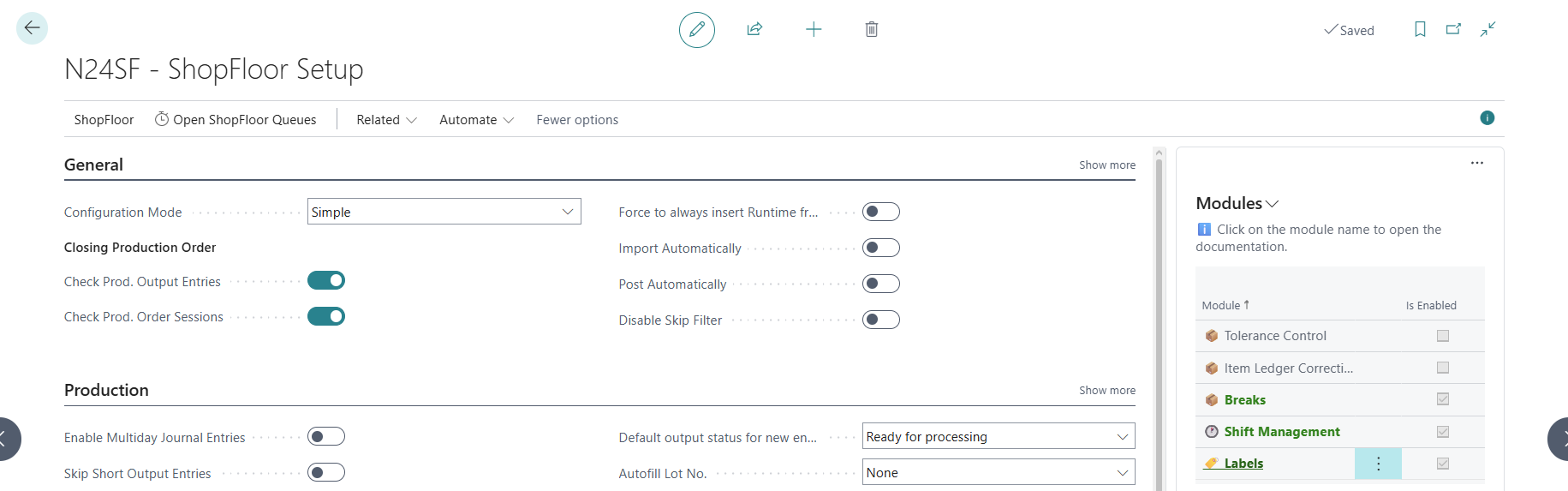
- Select any module from the list, then click
 .
. - From the action menu, select
Enable.
Additional information
- A module can be disabled in a similar way, using the action menu.
- Clicking on a module name will redirect you to the module's documentation page.