Suggested Packages
Reduce packaging effort and shipping cost with data-driven package recommendations based on quantities, weight, and priorities.
Suggested Packages auto-calculates required box and pallet quantities from item quantities and weights across supported sales documents.
⚙️ Configuration
You can find instructions on how to configure this functionality here.
📘 Information in Documents
Suggested packages can be calculated to optimize shipping for the following documents:
- Sales Order,
- Sales Quote,
- Warehouse Shipment,
- Posted Warehouse Shipment,
- Posted Sales Shipment,
- Posted Sales Invoice
⚡ Calculating Suggested Packages
Suggested packages are automatically calculated when entering and editing lines — primarily fields related to quantities and weights.
You can also manually trigger the calculation (e.g., after making changes to the Item Package Setup) by clicking the Calculate Packages action in the TMS tab.
If the packaging settings are incomplete or incorrect and you want to quickly correct them, you can go directly to the settings from the lines by clicking the Item Packages action in the TMS tab.
Previewing the Suggested Packages Effect
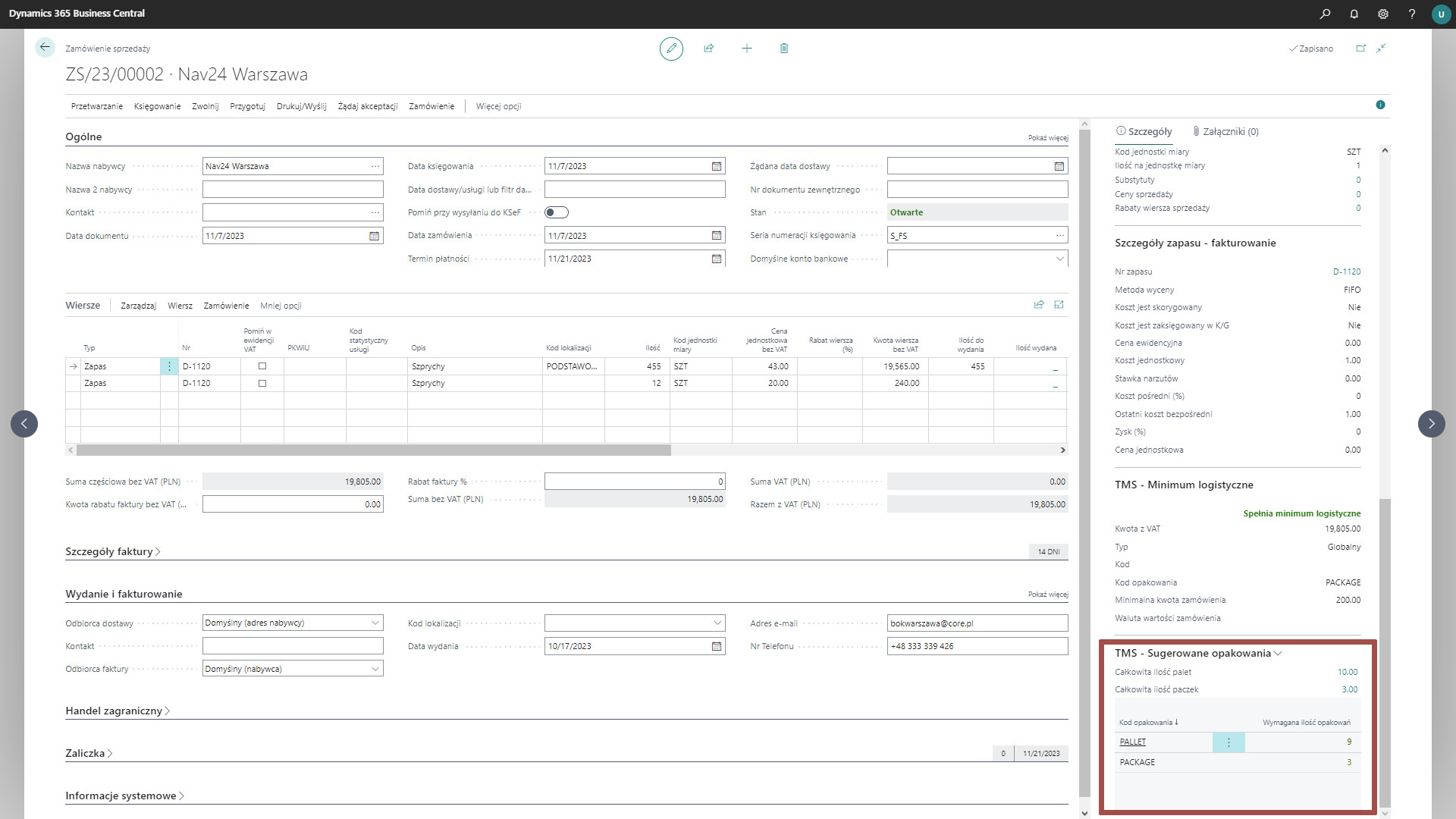
The results of the suggested packages calculation can be viewed in the FactBox pane on the right side of the document.
At the top of the TMS | Suggested Packages, we see a summary by packaging type: pallets and boxes.
Below, you can see the details of the calculations, such as:
- package code,
- total stock weight,
- suggested quantity of packages
Additional fields are also available, which can be customized through personalization.
The preview shows suggestions collectively for all lines in the document.
Adding a Package Line to the Order
If you want to sell/issue the packaging itself (e.g., a pallet), you can use the Add Packages as Lines action in the TMS tab.
The system will create a line for each package that has a defined Line Type, Code, and Price in the Packaging Settings, in a quantity corresponding to the suggested amount.
❓ Calculation Method
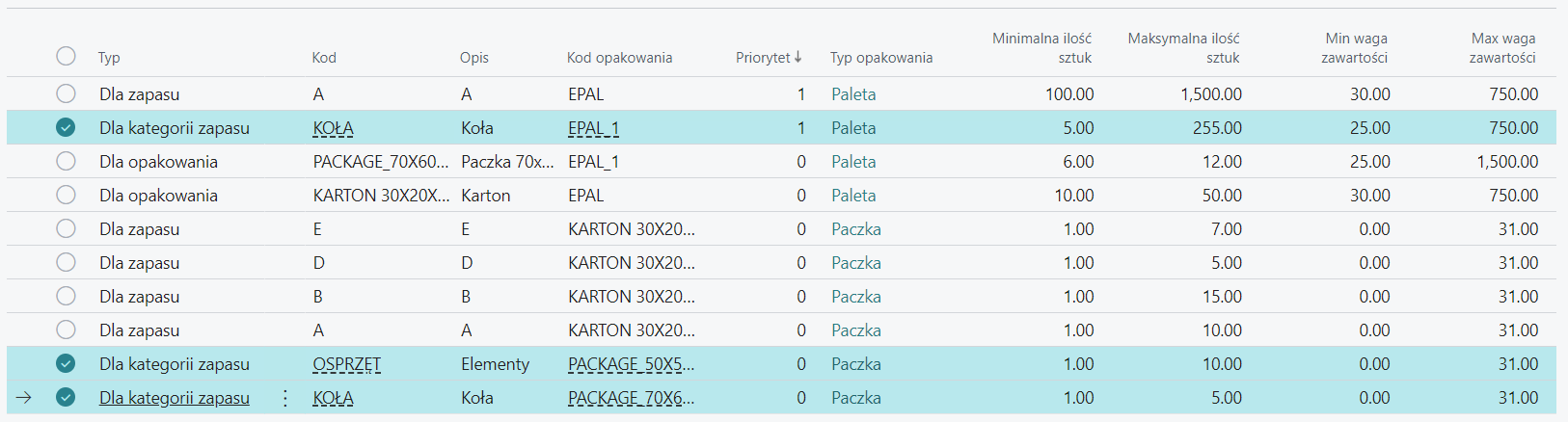
Calculations are made based on the quantity and weight in the line, based on the defined thresholds in the Item Package Setup settings. The Settings allow you to select the packages into which we will pack a given stock or items from a specific item category. The settings clearly define the minimum and maximum weight and quantity that can be packed into one package.
Example:
[Stock Line]: 6 pieces weighing a total of 6 kg
[Defined Setting]: One package holds 5 pieces of stock or 10 kg
The system calculates the required number of packages based on weight and quantity. The calculations indicate that it is more cost-effective to pack by weight, but the quantity limit imposes a restriction, so to correctly pack the items, 2 packages are needed. After all, we cannot fit 6 pieces of item into one package if it only holds 5.
The above package calculations are carried out for each line. Then, the same packages are summed by quantity.
The final step is to check if the calculated packages can be consolidated into one larger package, which is more economical for shipping. There is no point in sending 10 packages if they can be packed onto one pallet.
The system repeats consolidation multiple times until no package can be further consolidated. This enables multi-level packaging chains, e.g., item → box → package → pallet.
This is done using a special type in the Item Package Setup - For Package. When selecting a package, you can define the quantity and weight thresholds to pack these packages into a larger one. You can also define multiple For Package rules on the same source with different priorities — the system checks rules from highest priority and selects the first one that meets the conditions.
Example Setup Scenarios
The system enables fast and precise calculation of the number of required packages. Simply configure the rules, and the system will automatically assign the appropriate packages to items, eliminating the need for manual calculations. In the configuration process we consider:
- Available packages: box 30x20x20 and EPAL pallet.
- Products: items A and B.
- One box holds 10 items A.
- One box holds 15 items B.
- 15 items A require two boxes.
- Packing 100 items A on one pallet is more cost-effective than shipping 10 separate packages.
Scenario: Packages for an item
- Open TMS | Packages and enter the available packages.

- In TMS | Item Package Setup define which items can be packed into which package and what the quantity and weight limits are.
Example: For item A (1-10 pieces) select package BOX 30x20x20. If the number of items exceeds 10, an additional package is automatically added.

When entering item A on a sales document, the system will calculate the number of required packages. For example, for 11 pieces, the system suggests two boxes.

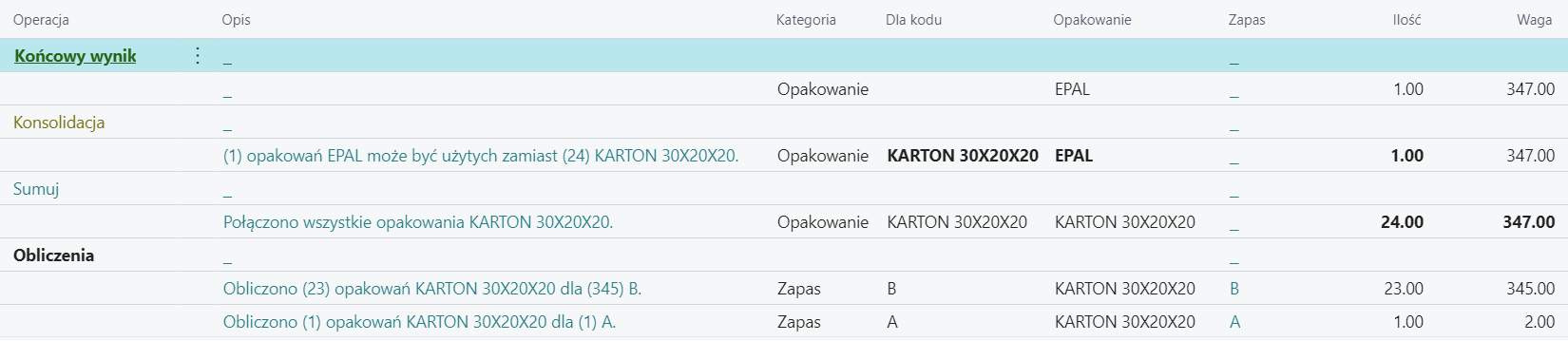
This is how all calculation steps look:

Scenario: Packages to box or pallet
You can assign multiple packages to a given item by setting different priorities. This way, you can specify that from a certain quantity, we skip boxes entirely and pack directly onto a pallet.
- Add a new entry for item A in TMS | Item Package Setup with package code EPAL (priority 1).
- Set the minimum quantity to 100 so the system uses a pallet.

Example: For 110 pieces of item A, the system will automatically choose a pallet instead of boxes.

Scenario: Packing smaller packages onto a pallet
- In TMS | Item Package Setup add a rule for package BOX 30x20x20, with package code EPAL.
- Set the minimum quantity of packages to 10 so the system packs the order onto a pallet.

Example: For 23 boxes, the system will automatically pack them onto a pallet.
Scenario: Conditional packing to package or pallet
You can define two For Package rules on the same source with different priorities and thresholds. The system checks rules from highest priority and selects the first one that meets the conditions.
Example: Boxes A are shipped individually in a 30x20x10 package (up to 4 pieces). Above 4 boxes — everything goes on a half-pallet.
- In TMS | Item Package Setup add two For Package rules with code A:
| Priority | Package Code | Minimum Quantity | Maximum Quantity | Max Content Weight |
|---|---|---|---|---|
| 10 | HALF-PALLET | 5 | 20 | 500 |
| 5 | PACKAGE_30X20X10 | 0 | 0 | 31 |
The system checks:
- Rule with priority 10 (HALF-PALLET): is the number of boxes ≥ 5? If yes — packs onto a half-pallet.
- Rule with priority 5 (PACKAGE_30X20X10): if the previous one did not match — packs into 30x20x10 packages, max 31 kg.
Example for 3 boxes A (total 15 kg):
- Priority 10: 3 < 5 → skipped
- Priority 5: 3 ≥ 0 → 3 × PACKAGE_30X20X10
Example for 6 boxes A (total 30 kg):
- Priority 10: 6 ≥ 5 → 1 × HALF-PALLET
Scenario: Multi-level packing (packaging chain)
The system supports multi-level packaging chains. This means that a package resulting from consolidation can be further consolidated into an even larger package.
Example: Item 1222D is packed in groups of 50 into boxes A. Boxes A are packed into 30x20x10 packages (max 31 kg). When there are 5 or more 30x20x10 packages — everything goes on a half-pallet.
- In TMS | Item Package Setup add three rules:
| Type | Code | Package Code | Priority | Max Quantity | Max Content Weight | Min Quantity |
|---|---|---|---|---|---|---|
| For Item | 90100101 | A | 10 | 50 | 0 | 0 |
| For Package | A | PACKAGE_30X20X10 | 5 | 0 | 31 | 0 |
| For Package | PACKAGE_30X20X10 | HALF-PALLET | 7 | 20 | 1,500 | 5 |
Calculations for 300 pieces (total 150 kg):
- Step 1: 300 / 50 = 6 → 6 × Box A
- Step 2 (consolidation 1): Boxes A → PACKAGE_30X20X10. 150 kg / 31 kg = 4.84 → 5 × PACKAGE_30X20X10
- Step 3 (consolidation 2): 5 ≥ MinQty=5 → PACKAGE_30X20X10 → HALF-PALLET. 5 / 20 = 0.25 → 1 × HALF-PALLET
Calculations for 150 pieces (total 75 kg):
- Step 1: 150 / 50 = 3 → 3 × Box A
- Step 2 (consolidation 1): 75 kg / 31 kg = 2.42 → 3 × PACKAGE_30X20X10
- Step 3 (consolidation 2): 3 < MinQty=5 → skipped → 3 × PACKAGE_30X20X10
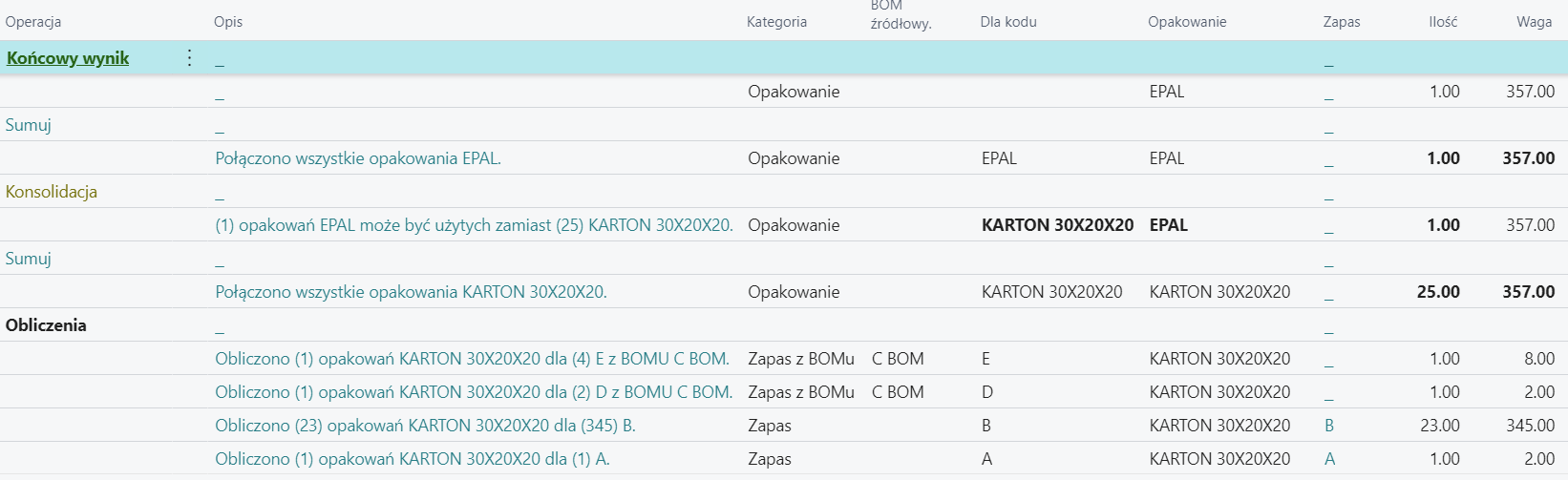
Scenario: Item with Assembly BOM
- In TMS | Item Package Setup add an item with a BOM containing items D and E.
- Add BOM components (items D and E) in TMS | Item Package Setup.

Example: When item C (with BOM) is added to a sales order, the system correctly calculates packages for the entire set.
Scenario: Packages for item category
- In TMS | Item Package Setup select Type: For Item Category.
- Every item with this category, without a specific rule, will be processed based on this setting.