How to modify existing label layouts?
You can edit label layouts to match your own needs. To do this:
Open label setup and on the action bar select
Configuration, then clickCustomize label layouts.A page with all available label layouts opens. Select the desired layout row and run
Export Layout.The layout file is downloaded. Open it in MS Word.
Customize the layout as needed, including:
Adding dynamic content using the
XML Mapping Pane.Search for
XML Mapping Panein the Word search box.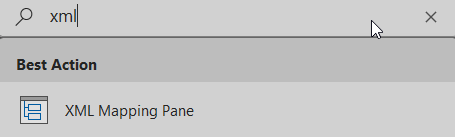
After opening, the
XML Mappingpane appears on the right. Selecturn:microsoft-dynamics-nav/reports/N24LBL_Label_Report/71610495/.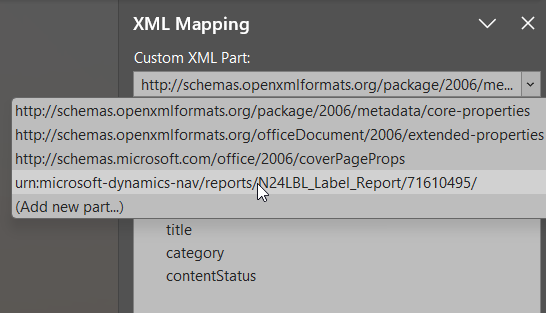
Expand
N24LBLLabelEntry, choose the field you need, then insert dynamic content at the desired place usingInsert Content Control→Plain Text.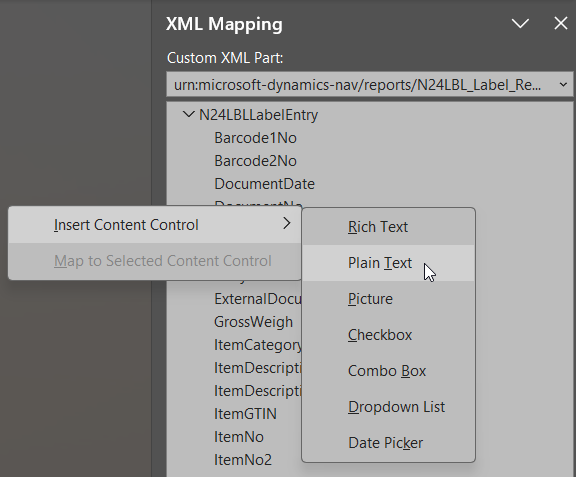
Dynamic content can be formatted the same way as regular text.
Adding barcodes
Select the dynamic field and assign one of the barcode fonts.
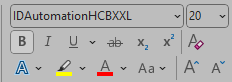
- Confirm the font-change prompt by clicking
Yes. In Word, you will not see a barcode preview, but after uploading to Business Central it prints correctly.
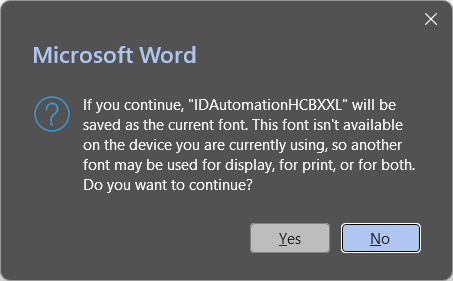
- Confirm the font-change prompt by clicking
Open label setup again and select
Configuration→Customize label layouts.Select the layout row you edited and click
Replace Layout. Confirm withYesto upload the updated Word file.