Shift Tracking — Setup
Shift schedules and auto-close rules standardize time tracking, reduce session inconsistencies and improve labor reporting accuracy.
🔓 Enabling the Module
Each module can be enabled or disabled at any time for any of your companies. Disabling a module hides all interface elements added by it. When a module is disabled, its functions become unavailable to users.
To enable a module
- Go to the N24SF - Shop Floor Setup page.
- Open the information panel on the right, where you'll find the
Modulessection.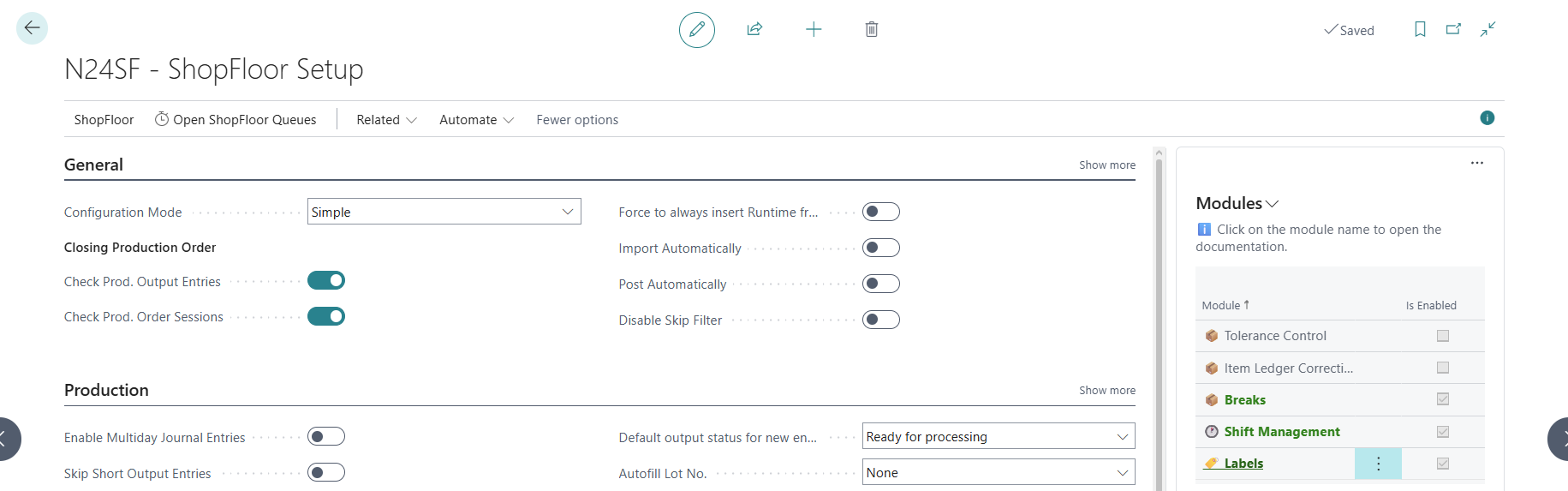
- Select any module from the list, then click
 .
. - From the action menu, select
Enable.
Additional information
- A module can be disabled in a similar way, using the action menu.
- Clicking on a module name will redirect you to the module's documentation page.
⚙️ Configuring Work Shifts
Work shift configuration is based on the standard Work Shifts table in Business Central, extended with additional fields required by the module.
Configuration Steps
- Open the Work Shifts page — also accessible from the Shift Entries page using the Work Shifts Setup action.
- For each work shift, fill in the additional fields:
| Field | Description |
|---|---|
| Start Time | N24SF | Shift start time (e.g., 06:00, 14:00, 22:00) |
| End Time | N24SF | Shift end time (e.g., 14:00, 22:00, 06:00) |
| Auto Close Buffer (min) | N24SF | Time buffer (in minutes) after the shift ends, after which open sessions will be automatically closed. Default: 5 minutes |
Example Configuration
| Code | Description | Start Time | End Time | Auto Close Buffer |
|---|---|---|---|---|
| SHIFT1 | Shift I (morning) | 06:00 | 14:00 | 5 min |
| SHIFT2 | Shift II (afternoon) | 14:00 | 22:00 | 5 min |
| SHIFT3 | Shift III (night) | 22:00 | 06:00 | 10 min |
Important
For night shifts (e.g., 22:00-06:00), the end time is earlier than the start time. The system handles this scenario correctly — automatic closing will occur the next day.
🔧 Settings on the Shop Floor Setup Page
The following shift module settings are located on the Shop Floor Setup page:
- Shift Auto Close Grace Period — global grace period (in minutes) after which open shifts are automatically closed. This value is applied together with the buffer defined at the individual work shift level.
🌐 Time Zone
Automatic shift detection works based on local time. The system converts UTC time to local time using the time zone configured in Shop Floor Setup → Time Zone field.
Important
Ensure the time zone is correctly configured. A missing time zone will cause an error when creating shift entries via API.