Manual Rating (FactBox)
The FactBox lets you rate vendors from 1 to 5 with comments on purchasing documents and vendor cards, and supports automatic AI scoring.
📍 Where to find the FactBox
The FactBox is available in the information panel on the following pages:
- Vendor Card,
- Vendor List,
- Purchase Order,
- Purchase Invoice,
- Posted Purchase Receipt,
- Posted Purchase Invoice,
- Warehouse Receipt (comment/rating only),
- Posted Warehouse Receipt (comment/rating only),
- Item Vendor Catalog,
- Planning Worksheet.
👁️ What the FactBox displays
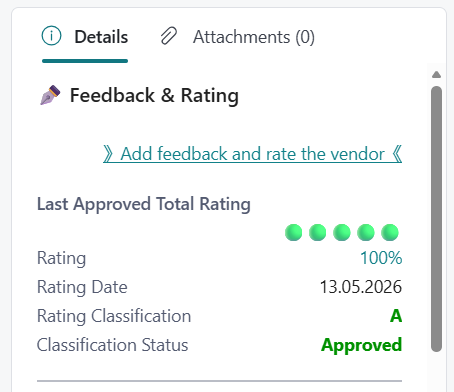
In addition to a link to add a new rating, the FactBox shows a Last Approved Final Rating section (visible if at least one approved sheet with a rating exists for the vendor):
- Rating — the last approved final result, with color-coded indicator.
- Rating Date — date of the last approved sheet.
- Rating Classification — vendor class (A–E) from the last approved sheet, with color-coded indicator.
- Classification Status — vendor status (Approved, Conditional, Warning, Blocked) with color-coded indicator.
More about classification: Vendor Classification.
✍️ How to add a manual rating
- Open a purchasing document or vendor card.
- In the FactBox, click the manual rating link.
- In the dialog window, fill in:
- Vendor Feedback — description of the vendor cooperation,
- Manual Rating — a value from 1 to 5 (field available only when AI is disabled).
- After confirming the dialog with OK, the entry is saved.
The system automatically saves the entry with context: document type, document number, user, and date.
Tip
You can enable the Manually Rated By and Rated At fields through Personalization.

✨ AI mode — automatic feedback scoring
When the Use AI for Manual Rating option is enabled in the module setup, the dialog operates in AI mode:
- The Vendor Feedback field is required — the dialog cannot be confirmed without a comment.
- The Manual Rating field is locked — the system will assign the rating based on the comment.
- After confirmation, the system sends the comment together with the list of active rating criteria and their weights to Azure OpenAI.
- AI uses a two-step evaluation process:
- Criteria mapping — checks whether the comment relates to one of the active rating criteria (e.g. on-time delivery, quantity reliability, price efficiency, complaints, manual rating).
- Weight application — if the comment relates to a high-weight criterion (e.g. weight 3–5) and is negative, AI aggressively lowers the rating (to 1–2) and automatically sets the Requires Attention field. If the comment relates to a low-weight criterion (weight 1–2) and is negative, the issue is treated as minor and Requires Attention is not set (unless critical violations are detected — see below). If the comment does not map to any criterion, AI evaluates it purely based on the sentiment of the text.
- Regardless of criterion weight, AI always sets Requires Attention when the comment indicates: ethical violations, legal threats, safety hazards, financial risk, or recurring incidents.
When AI mode is active, the dialog displays a message explaining how automatic scoring works.
Note
If the Azure OpenAI connection fails, the system saves the comment without a rating and displays a message about the connection issue.
Tip
To enable AI mode, go to Setup and check the Use AI for Manual Rating field.
📏 Manual rating scale
Manual ratings on a 1–5 scale are converted to percentages during sheet generation:
| Manual Rating | Percentage |
|---|---|
| 1 | 0% |
| 2 | 25% |
| 3 | 50% |
| 4 | 75% |
| 5 | 100% |
If multiple manual entries exist in a single period, the system calculates an arithmetic average and converts it to a percentage.
⚠️ Requires Attention field
The Requires Attention field is visible on the manual entries list (Vendor Feedback). Entries marked as requiring attention are highlighted in red.
The field can be set automatically by AI (when AI mode is enabled) or manually by the user on the entries list.
This allows management to quickly identify comments requiring action — e.g. regarding legal threats, product safety issues, or serious quality failures.
📊 Impact on rating sheets
Manual entries are included in the next sheet generation under the Manual Entry Percentage criterion — the system takes into account all manual entries from the period specified in the sheet header.
From a sheet line, you can click the Manual Entry Percentage value to see the list of manual entries that make up the result (drilldown).
Calculation logic and weight configuration: Module Setup.