Setup
The ⚙️ N24VR - Vendor Rating Setup page configures the evaluation period, generator options, AI connection, and criteria with weights and tolerances.

🪧 General

| Field | Description |
|---|---|
| Vendor Rating Sheet Numbering Series | Number series for rating sheets. When the field is empty, the user must enter the number manually when creating a sheet. |
| Default Evaluation Period (Formula) | Date formula suggested when creating a new sheet, e.g. -3M (last 3 months) or -1M. |
| Non-Approved Vendors Warning | Visible when the ✅ Approved Vendors module is enabled. When checked, selecting a non-approved vendor on a purchase order line shows an informational message. Details: Approved Vendors for Item. |
🧩 Modules
The Modules FactBox on the setup page lists the optional N24 Vendor Rating modules. Each module can be enabled or disabled independently. After changing a module's state, refresh the page — fields associated with the module will appear or disappear in the interface.
| Column | Description |
|---|---|
| Module | Module name. Clicking the name opens the module documentation. |
| Is Enabled | Indicates whether the module is active. |
Available modules
| Module | Description |
|---|---|
| ✅ Approved Vendors for Item | Lets you mark approved vendors per item and displays a warning on purchase orders when a non-approved vendor is selected. More → |
👁️ Rating Sheet Settings

These values are suggested on the request page of the 🪄 N24VR - Vendor Rating Generator report. The user can change them for each run.
| Field | Description |
|---|---|
| Rated Vendor Handling | What to do with a vendor who already has a line in the sheet. |
| Vendor Visibility | Which vendors should appear in the generator results. |
| Skip Blocked Vendors | When enabled, the generator automatically skips vendors that have a filled Blocked field on the vendor card (value other than blank). Enabled by default. |
Detailed description of options and usage scenarios: Vendor Rating Sheets → Generator.
✨ AI Configuration

| Field | Description |
|---|---|
| Use AI for Manual Rating | When enabled, the system automatically assigns a 1–5 rating based on the comment using Azure OpenAI. The Manual Rating field in the dialog is then locked, and the Vendor Feedback field is required. AI also analyzes whether the comment requires management attention. |
| AI Model | Name of the Azure OpenAI model deployment. Required when Use AI for Manual Rating is enabled. |
| AI Endpoint | URL of the Azure OpenAI endpoint (e.g. https://<name>.openai.azure.com/). Required when Use AI for Manual Rating is enabled. |
| AI API Key | Access key for Azure OpenAI. The value is masked. Required when Use AI for Manual Rating is enabled. |
Note
The same connection settings (AI Model, AI Endpoint, AI API Key) are used both by automatic feedback scoring and by the AI Summary feature on the approved rating sheet. For AI mode to work correctly, an active Copilot feature in Business Central and a configured Azure OpenAI connection are required. If the configuration is incomplete, the system will display a notification about missing settings.
Detailed description of AI mode: Manual Rating → AI mode.
Detailed description of AI Summary: Vendor Rating Sheets → AI Summary.
The setup page includes a Test AI Connection action that verifies the Azure OpenAI connection configuration. The action is active only when the Use AI for Manual Rating field is enabled.
🏷️ Rating Classification Mapping
The setup page includes a Rating Classification Mapping action that opens the configuration page for mapping percentage results to vendor classes (A–E) and classification statuses.
Detailed description of classification and default mapping: Vendor Classification.
🏅 Vendor Rating Sheets
The setup page includes a Vendor Rating Sheets action that opens the list of all rating sheets. This provides quick access to working with sheets without searching for the page manually.
Detailed description of working with sheets: Vendor Rating Sheets.
Current score without creating a sheet: Live Rating.
⚖️ Rating Criteria
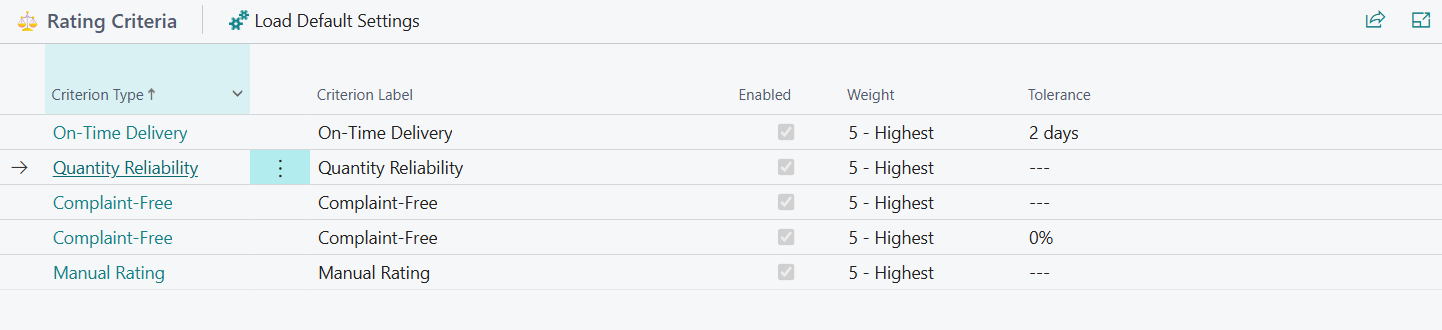
Rating criteria are defined in a table embedded in the lower part of the setup page. Each criterion is a separate row with its own parameters.
Criteria list columns
| Column | Description |
|---|---|
| Criterion Type | Type of criterion: On-Time Delivery, Qty Reliability, Complaint-Free, Price Efficiency, Manual Rating. |
| Criterion Label | Name displayed as the column header on the rating sheet. Can be changed to any value. |
| Description | Free-text description of the criterion — e.g. business context or company-specific rules. |
| Enabled | Specifies whether the criterion is active. A disabled criterion is not calculated by the generator and does not appear on the rating sheet. |
| Weight | Impact of the criterion on Final % (value from 1 to 5). |
| Tolerance | Formatted tolerance value — e.g. "2 days" for on-time delivery, "5%" for price efficiency, "---" when not applicable. |
Enabling and disabling criteria
The Enabled field allows you to decide which criteria are active. A disabled criterion:
- is not calculated during sheet generation,
- is not visible as a column on the rating sheet,
- does not affect Final %.
This allows starting with a subset of criteria and gradually adding more as data in the system becomes complete.
Detailed criterion settings
Clicking a criterion row opens a card with full settings. The card contains:
- General section — label, description, enable toggle, weight (common to all criteria).
- Detailed section — visible only for the specific criterion type.
⏱️ On-Time Delivery
| Field | Description |
|---|---|
| Reference Date | The field from the document used as the reference point for on-time delivery evaluation. Available options: Expected Receipt Date, Promised Receipt Date, Requested Receipt Date. Default: Expected Receipt Date. |
| Delay Tolerance (+/- Days) | Acceptable deviation of receipt date from the selected reference date. A value of 2 means a delivery is considered on-time if receipt occurred at most 2 days early or 2 days late. |
💲 Price Efficiency
| Field | Description |
|---|---|
| Price Comparison Method | Method used to calculate Price Efficiency Percentage. Available options described in the How Price Efficiency % is calculated section. |
| Price Difference Tolerance (%) | Acceptable percentage deviation from the reference price. When the difference is within tolerance, the line receives a 100% rating. |
📦 Qty Reliability, 🛡️ Complaint-Free
These criteria have no additional settings beyond the general section (label, description, enable toggle, weight).
✍️ Manual Rating
This criterion has no additional settings beyond the general section (label, description, enable toggle, weight). The criterion card displays a ✍️ Manual Rating Settings section with the Use AI for Manual Rating field.
Loading default settings
The Load Default Settings action in the criteria list header restores default values for all five criteria. Default settings are created automatically on first installation of the extension. The action overwrites existing settings after confirmation.
🧮 How Final % is calculated
Only enabled criteria with data for the given period are included in calculations. Disabled criteria or those without data (value -1) are excluded from both the numerator and denominator.
The result is rounded to 0.01%.
⏱️ How On-Time Delivery Percentage is calculated
The on-time delivery criterion compares the posting date of each posted purchase receipt line with the configured Reference Date. A delivery is considered on-time if the difference between these dates does not exceed the configured Delay Tolerance.
Reference date
In the On-Time Delivery criterion settings, you can select which field from the purchase receipt line will be treated as the planned delivery date:
| Option | Field on receipt line |
|---|---|
| Expected Receipt Date | Expected Receipt Date (default) |
| Promised Receipt Date | Promised Receipt Date |
| Requested Receipt Date | Requested Receipt Date |
If the selected date is not filled on a receipt line, that line is treated as on-time and does not negatively affect the score.
Formula
A delivery is on-time when:
Final result:
The result is rounded to 0.01%.
Note
If the selected reference date is not filled on a receipt line, the delivery is automatically considered on-time — it does not negatively affect the score.
📦 How Quantity Percentage is calculated
The quantity criterion compares the received quantity from the posted purchase receipt line with the N24VR Quantity Ordered field on the same line.
The N24VR Quantity Ordered field is automatically populated during receipt posting — the system copies the quantity from the purchase order line to the posted receipt line.
Formula for a single line:
Final result: average (1 − deviation) across all receipt lines in the period, expressed as a percentage.
Note
If historical data contains no quantity discrepancies, Quantity Percentage will be close to 100%. This criterion starts differentiating vendors only when real deviations between ordered and received quantities appear in the data.
✍️ How Manual Entry Percentage is calculated
Manual ratings are entered on a 1–5 scale and converted to percentages:
| Manual Rating | Percentage |
|---|---|
| 1 | 0% |
| 2 | 25% |
| 3 | 50% |
| 4 | 75% |
| 5 | 100% |
If more than one manual entry exists in a given period, the system calculates an arithmetic average and converts it to a percentage.
🛡️ How Complaint-Free Percentage is calculated
The complaint criterion compares the total claimed quantity with the total delivered quantity in the evaluation period.
Data sources:
- Quantity delivered — sum of quantities from posted purchase receipt lines (only Inventory type items with quantity ≠ 0).
- Quantity claimed — sum of quantities from posted purchase credit memo lines and posted return shipment lines (only Inventory type items with quantity ≠ 0).
Formula:
The result is rounded to 0.01% and capped at 0% from below. If there are no receipt lines in the period, the criterion is not calculated.
💲 How Price Efficiency % is calculated
The price criterion compares prices from posted purchase invoice lines with a reference price. The reference price method depends on the Price Comparison Method setting:
| Method | Reference price |
|---|---|
| Purchase Price | Lowest active price from the purchase price list (vendor-specific price first, then general price for all vendors). |
| Cross-Vendor Average | Average unit cost (LCY) of the same item purchased from other vendors in the same period. |
| Historical Trend | Average unit cost (LCY) of the same item from the same vendor in the equivalent prior period (e.g. if the sheet covers March, February is compared). |
Note
The Cross-Vendor Average and Historical Trend modes compare costs in local currency (LCY), so invoices in different currencies are correctly compared. The Purchase Price mode compares the direct unit cost with the price list price in the document currency.
For each invoice line where the price is non-zero, the system calculates a rating:
- If the percentage price difference is within the Price Difference Tolerance → line rating = 100%.
- Outside tolerance → rating calculated by the formula:
Examples:
| Invoice price | Reference price | Line rating |
|---|---|---|
| 80 | 100 | 120% (price lower than reference) |
| 100 | 100 | 100% |
| 120 | 100 | 80% |
| 150 | 100 | 50% |
| 200 | 100 | 0% |
| 250 | 100 | 0% (capped from below) |
The rating is capped at 0% from below, but not capped from above. If the invoice price is lower than the reference price, the line rating exceeds 100% — meaning the vendor sold the item cheaper than the reference price would suggest. For example, a price of 80 with a reference of 100 gives a rating of 120%, which positively affects the vendor's average score.
The final Price Efficiency Percentage is the arithmetic average of ratings across all lines, rounded to 0.01%. Since individual lines can exceed 100%, the average can also be higher than 100% — meaning the vendor systematically offers prices lower than reference prices.
Note
If no invoices exist in the prior period for Historical Trend mode, or no other vendor purchased the same item for Cross-Vendor Average mode — the criterion is not calculated and displays as "---".
🚀 Recommended initial settings
- Open the setup page and check that criteria have been automatically populated (they should appear on first opening).
- Default Evaluation Period — set in the On-Time Delivery criterion details (e.g.
-3Mor-1M). - Delay Tolerance — value consistent with purchasing policy (e.g. 2 days).
- Reference Date — choose the field that reflects the vendor's commitment: Promised Receipt Date if vendors confirm dates on orders, Expected Receipt Date if your company enters the planned delivery date.
- Criterion Weights — adjust weights to business priorities in individual criterion rows.
- Disabling criteria — criteria with no data available yet should be disabled. They can be enabled later.
- Price Comparison Method — set in the Price Efficiency criterion details: Purchase Price if price lists are maintained; Cross-Vendor Average if the same items are purchased from multiple vendors.
- Price Difference Tolerance — e.g.
5(5%), so minor price deviations do not affect the rating. - Vendor Visibility — start with
🌕 Show Allto see the full data cross-section.
Detailed workflow with sheets: