Vendor Rating Sheets
Rating sheets collect purchasing data for a selected period, calculate five weighted criteria, and assign vendors a score and A–E classification.
📋 Sheet list
The 🏅 N24VR - Vendor Rating Sheets page is the central point for managing rating sheets.
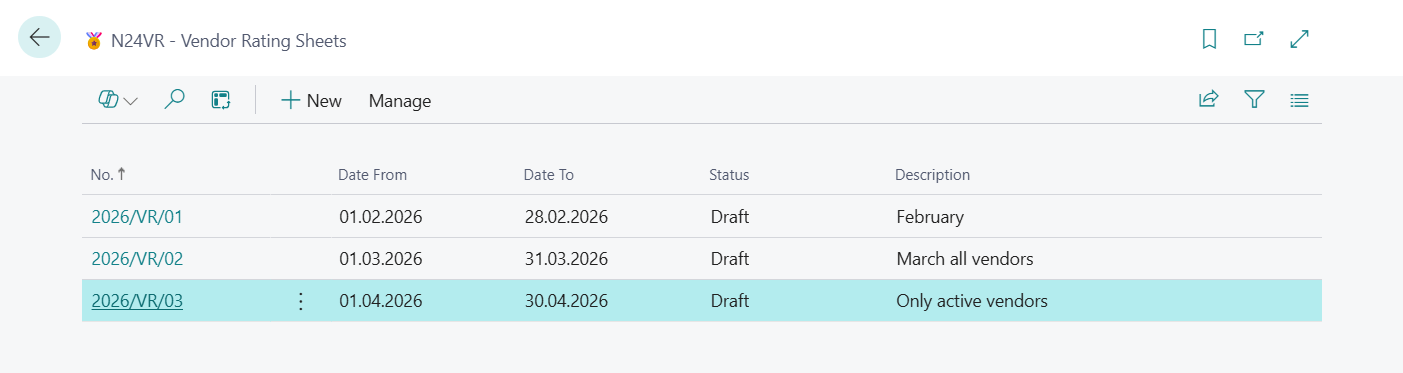
The list displays the following columns:
| Column | Description |
|---|---|
| No. | Sheet number (from number series or manually assigned) |
| Date From | Start of the evaluation period |
| Date To | End of the evaluation period |
| Status | Draft or Approved |
| Description | Optional sheet description |
From the list you can create a new sheet or open an existing one by navigating to the sheet card.
📄 Rating sheet card
After opening a sheet, the 🏅 N24VR - Vendor Rating Sheet card is displayed.
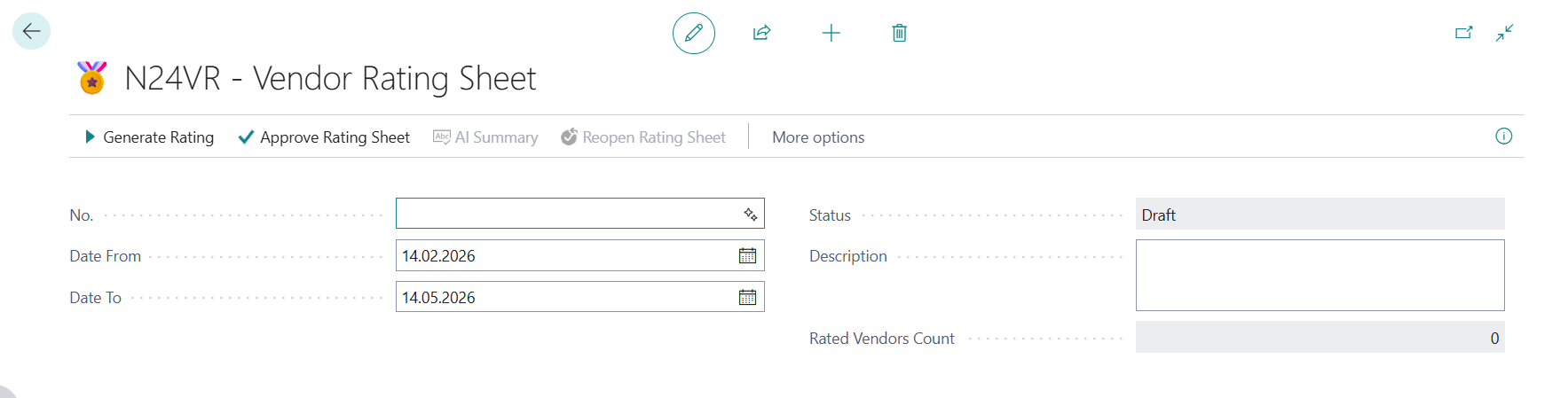
Sheet header
| Field | Description |
|---|---|
| No. | Sheet number. If a number series is defined in setup, it fills automatically. Otherwise, it must be entered manually. |
| Date From | Start of the period for which purchasing documents will be analyzed. |
| Date To | End of the evaluation period. When creating a new sheet, both date fields are automatically populated based on the formula from setup (e.g. -3M from the work date). |
| Price Comparison Method | Method used to calculate the Price Efficiency criterion for this sheet. Defaults to the value from criterion settings, but can be changed per sheet — without affecting global settings. Visible only when the Price Efficiency criterion is enabled. |
| Status | Draft — the sheet is editable. Approved — the sheet is locked, with a timestamp and information about who approved it. |
| Description | Optional comment for the sheet. |
| Rated Vendors Count | Number of vendors rated in the current sheet. Calculated automatically based on sheet lines. |
| Created By | User name who created the sheet (automatic field). |
💲 Price Comparison Method — per-sheet mode
The Price Comparison Method field lets you use a different calculation method for a specific sheet without changing the global criterion settings. Each sheet stores the method used for its price calculations — historical sheets remain unchanged even after the global settings are modified.
Real-world scenario: Day to day, the purchasing team generates monthly rating sheets using the Purchase Price method — fast and straightforward, requiring only an up-to-date price list. Once a year, for the annual vendor review, they create a new sheet and switch the method to Historical Trend to assess whether prices offered by individual vendors are moving in a favorable direction over time. Both types of sheets coexist in the system — monthly operational ratings and an annual trend analysis — each with the method recorded at the time of calculation.
Available methods: How Price Efficiency % is calculated.
Sheet creation process
- Create a new record on the list — the system automatically fills in the evaluation period.
- (Optional) Change dates or fill in the Description field.
- Run the Generate Rating action.
- After lines are generated, review vendor results.
- If needed, add a comment or adjust the Final % field.
- Finally, change the sheet status to Approved.
The generator can be run multiple times for the same sheet, each time with different filters or options.
🪄 Vendor Rating Generator
After running the Generate Rating action, the request page of the 🪄 N24VR - Vendor Rating Generator report opens.
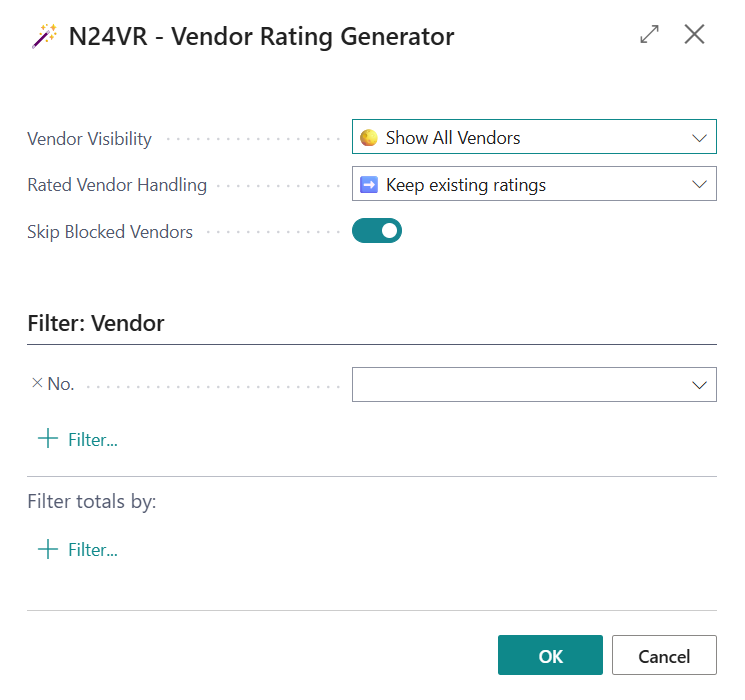
Generator options
Default option values are taken from the module setup, but you can change them for the current run.
| Field | Option | What it does |
|---|---|---|
| Rated Vendor Handling | ➡️ Keep Existing Ratings |
Vendors that already have a line in the sheet are not changed. |
| Rated Vendor Handling | 🔄 Overwrite Existing Ratings |
Existing lines are recalculated and overwritten with new results. |
| Vendor Visibility | 🌕 Show All |
The generator includes all vendors regardless of missing data. |
| Vendor Visibility | 🌗 Hide When Some Criteria Are Empty |
Skips vendors if at least one criterion is missing. |
| Vendor Visibility | 🌑 Hide Only When All Criteria Are Empty |
Skips vendors only when all criteria are missing simultaneously. |
| Skip Blocked Vendors | (enabled / disabled) | When enabled, the generator skips vendors that have a filled Blocked field on the vendor card. The default value is taken from the module setup. Details: Skipping blocked vendors. |
Request page filters
Since the generator is a Business Central report, the request page has a standard filters tab. This allows narrowing the calculation scope to a specific vendor, vendor group, or other criterion from the Vendor table.
Filters apply to the current run only — they do not change module settings.
When to use which option
| Scenario | Recommended settings |
|---|---|
| First data analysis | 🌕 Show All + 🔄 Overwrite Existing Ratings |
| Recalculation after data correction | 🔄 Overwrite Existing Ratings |
| Adding new vendors without changing already rated ones | ➡️ Keep Existing Ratings |
| Report only for vendors with complete data | 🌗 Hide When Some Criteria Are Empty |
| Skipping blocked vendors | Enable Skip Blocked Vendors — the system will skip vendors with a filled Blocked field on the vendor card |
📊 Sheet lines — rating results
After running the generator, lines with results for individual vendors appear in the lower part of the sheet card.
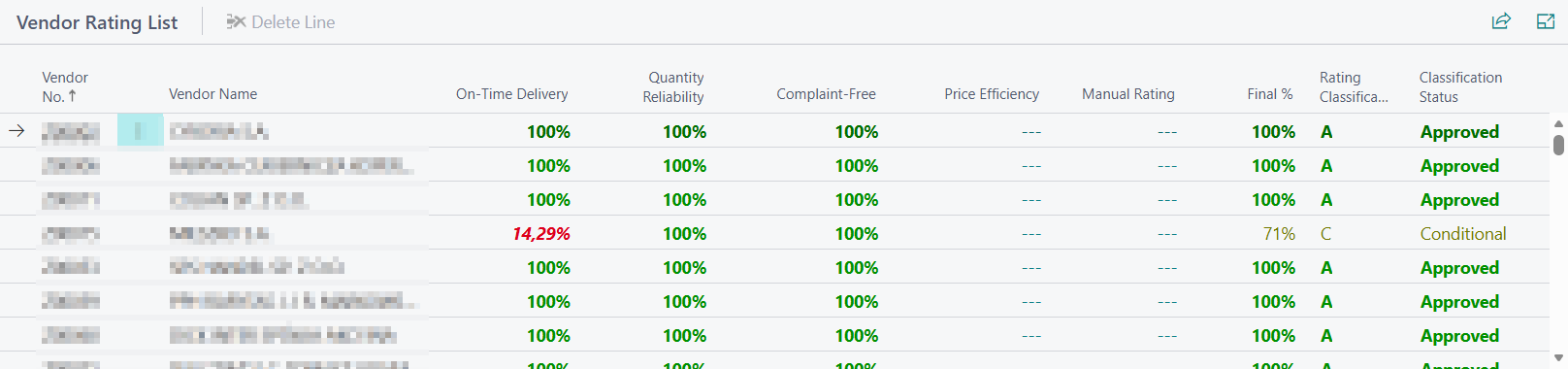
Line columns
Column visibility depends on which criteria are enabled in the rating criteria setup. Column names correspond to the labels defined in criterion settings.
| Column | Description |
|---|---|
| Vendor No. | Vendor code from the vendor card |
| Vendor Name | Vendor name |
| Price Comparison Method | Method used to calculate the Price Efficiency criterion for this vendor. Visible only when the Price Efficiency criterion is enabled. |
| On-Time Percentage | Percentage of purchase receipt lines delivered on time (taking tolerance into account). |
| Quantity Percentage | Percentage of quantity accuracy between received and ordered quantities. |
| Manual Entry Percentage | Average result of manual entries from the FactBox for the given period (1–5 scale converted to 0–100%). |
| Complaint-Free Percentage | Percentage of delivered quantity not covered by a purchase credit memo or return (the Complaint-Free criterion). |
| Price Efficiency Percentage | Result of comparing invoice prices with the reference price based on the selected price comparison method. |
| Final % | Weighted average of available criteria. The field is editable — the result can be manually adjusted. |
| Rating Classification | Vendor class (A–E) assigned based on the classification mapping. |
| Classification Status | Vendor status (Approved, Conditional, Warning, Blocked) resulting from the classification. |
| Notes | Text field for rating justification or notes. |
| Turnover (LCY) | Total turnover with the vendor during the evaluation period, expressed in local currency. This field is informational only — it is not included in any calculation and does not affect Final %. |
Tip
You can enable the Calculated Final % and Notes fields through page Personalization.
Note
The generator calculates data only for enabled criteria. Disabled criteria do not appear as columns on the sheet and do not affect Final %.
Color coding
Percentage values in sheet lines are automatically color-coded based on the rating classification mapping. The system checks which percentage range a criterion value falls into and applies the color assigned to that range in the mapping configuration.
Colors, percentage ranges, and class assignments are fully configurable — details in the Row colors section.
If a value does not fall within any defined range or data is unavailable, the row is displayed without formatting.
Drilldown to source data
From percentage values you can navigate to details:
- On-Time Percentage and Quantity Percentage → opens a filtered list of posted purchase receipt lines for the vendor and period,
- Manual Entry Percentage → opens the list of manual entries for the vendor in the sheet period,
- Complaint-Free Percentage → opens a filtered list of posted purchase credit memo lines for the vendor and period,
- Price Efficiency Percentage → opens a filtered list of posted purchase invoice lines for the vendor and period.
This enables quick verification of which documents a vendor's result is based on.
🔒 Sheet statuses and approval
| Status | Meaning |
|---|---|
| Draft | The sheet is editable — you can generate ratings, modify lines and comments. |
| Approved | The sheet is formally closed. The system records the date and approving user. Sheet deletion is blocked. |
To reopen an approved sheet, use the Reopen Rating Sheet action — the sheet returns to Draft status, and approval data (date and user) is cleared.
Warning
Reopening is allowed only when there is no newer sheet in Approved status (with a later period than the current sheet). This protects chronology and prevents invalidating conclusions in newer approved sheets.
Important
Reopening a sheet permanently deletes the saved AI Summary (if one was previously generated). To get a new summary, you need to re-approve the sheet and run the AI Summary action.
Note
Changing status to Approved is only possible after at least one vendor line has been generated.
What status changes cause
| Action | Effect |
|---|---|
| Approve Rating Sheet | Locks line editing, records date and approving user, blocks sheet deletion, enables the AI Summary action. During approval, the system displays a progress bar showing processed vendors. Vendor card "last rating" fields are updated only when this is the latest approved period. |
| Reopen Rating Sheet | Restores editing, clears approval data (date and user), deletes AI Summary, propagates status to lines. During reopening, the system displays a progress bar showing processed vendors. Vendor card "last rating" fields are recalculated from the previous approved period; if none exists, these fields are cleared. |
Example scenarios
- Allowed reopen (latest sheet) There are approved sheets for periods Jan and Feb. You reopen Feb. Result: operation is allowed, Feb returns to Draft, and vendor cards are recalculated from Jan.
- Blocked reopen (older sheet) There are approved sheets for periods Jan and Feb. You try to reopen Jan. Result: operation is blocked, because a newer approved sheet (Feb) exists.
- Approve older period after newer already approved Feb is already approved. You approve Jan later (for correction history). Result: Jan becomes approved, but vendor card "last rating" remains based on Feb as the latest approved period.
- No previous approved period after reopen Only one approved sheet exists (Jan). You reopen Jan. Result: vendor card "last rating" fields are cleared (no earlier approved period to fall back to).
📌 FactBox panels
On the rating sheet card, in the right-side panel, four information panels are available. Three of them — Vendor Documents & Items, Previous Approved Rating, and Vendor Feedback — display data for the currently selected vendor line, filtered by the date range defined in the sheet header (Date From and Date To). The fourth panel — Rating Criteria — is independent of the selection and shows general information about the enabled rating criteria.
Vendor documents and inventory
The panel displays the count of vendor's purchasing documents in the evaluation period (defined by the header dates):
| Indicator | Description |
|---|---|
| Posted Purchase Receipts | Number of purchase receipts in the evaluation period. |
| Posted Purchase Invoices | Number of purchase invoices in the evaluation period. |
| Posted Purchase Credit Memos | Number of purchase credit memos in the evaluation period. If exceeding 5 — displayed in red. |
| Vendor Items | Number of catalog items (type: Inventory) for which the current vendor is the default vendor. |
Each indicator is clickable — clicking opens a filtered list of the corresponding documents.
Previous approved final rating
The panel shows the result from the last approved rating sheet for the same vendor (excluding the current sheet):
| Field | Description |
|---|---|
| Rating Sheet No. | Sheet number from which the previous rating originates. |
| Rating % | Final percentage result from the previous sheet, with a visual block indicator. |
| Classification | Vendor class from the previous sheet (A–E). |
| Status | Classification status from the previous sheet. |
| Rating Period | Date range of the previous sheet in DD.MM.YYYY–DD.MM.YYYY format. |
Clicking any field in this panel opens the vendor's rating history.
If no previous approved sheet exists for the vendor, the panel displays an informational message.
Vendor feedback
The Vendor Feedback panel displays comments from manual entries for the selected vendor in the sheet period. The panel includes only manual entries that have a filled Vendor Feedback field — entries without a comment are skipped.
By default, the Feedback and Document No. columns are visible. Additional columns — Date and Manually Rated By — are hidden but can be enabled via page Personalization.
The panel supports drilldown actions: click Feedback to open the full comment text, or click Document No. to go to the related source document when it exists.
The panel enables a quick review of rating notes and justifications without leaving the sheet card.
Rating criteria
The Rating Criteria panel is visible when the sheet contains at least one generated line. It displays the list of enabled criteria with a short description of the calculation logic for each — allowing you to quickly identify what a given criterion measures without leaving the sheet card.
The panel includes a 📘 ➟ Rating Criteria Documentation link that opens the full documentation on criterion configuration.
Vendor Rating Trend (chart)
The Vendor Rating Trend panel displays an interactive rating history chart for the currently selected vendor — without leaving the sheet card.
The horizontal axis (X) represents consecutive rating sheet numbers, sorted chronologically by the start date of each period. The vertical axis (Y) shows percentage values (0–100%).
The chart contains the following series:
| Series | Chart type | Description |
|---|---|---|
| Final % | Stacked column | Vendor final result from each sheet — the dominant visual series. |
| On-Time % | Line | On-time delivery criterion result (shown when criterion is enabled). |
| Quantity % | Line | Quantity reliability criterion result (shown when criterion is enabled). |
| Complaint-Free % | Line | Complaint-free criterion result (shown when criterion is enabled). |
| Price % | Line | Price efficiency criterion result (shown when criterion is enabled). |
| Manual % | Line | Manual rating criterion result (shown when criterion is enabled). |
Only series corresponding to enabled criteria are displayed — disabled criteria do not appear on the chart.
Tip
The chart is always tied to a specific vendor — it shows their rating history across all sheets, both approved and draft. This gives you a complete picture of how their results have changed over time.
✨ AI Summary
On the card of an approved rating sheet, the AI Summary action is available, which generates an automatic summary of vendor rating results using Azure OpenAI.
How AI Summary works
- Open an approved vendor rating sheet.
- Run the AI Summary action from the action bar.
- The system displays a progress dialog informing about successive stages:
- Collecting data for AI analysis…
- Analyzing data with AI engine…
- Generating charts…
- Finalizing summary…
- The system collects data from all sheet lines: criterion results, classifications, statuses, vendor turnover, the weights of each active criterion, and the price comparison method used in the sheet. If a previous approved sheet exists, historical data is also included for trend analysis.
- Data is processed by the AI model, which generates a summary report.
- The generated summary is saved in the sheet and opens in a separate window.
On the next opening of the AI Summary action, the saved summary is displayed without regenerating.
Note
The AI Summary action is available only for sheets with Approved status. It requires a configured AI connection in the module setup.
What the AI report contains
The summary consists of five sections:
| Section | Description |
|---|---|
| Overview | Donut chart with A–E class distribution and a brief description of vendor base health. |
| Actions Required | List of vendors requiring attention — prioritized by status, class, trend, and business impact (turnover + criterion weight). High-turnover vendors are placed first even if their class is B or C. |
| Positive Highlights | Best vendors and those with the greatest improvement compared to the previous period. |
| Systemic Observations | Patterns repeating across multiple vendors (e.g. common data gaps). |
| Tip — Missing Data | Information about criteria without data with recommendations for completion. |
How AI prioritizes actions
The order in the Actions Required section is determined by several factors:
- Criterion weight — a low result in a high-weight criterion (e.g. On-Time Delivery with weight 5) is treated as a more serious issue than the same result in a low-weight criterion.
- Vendor turnover — high-turnover vendors are always prioritized higher because their issues have greater impact on purchasing continuity.
- Price comparison method — AI interprets the Price Efficiency % score depending on the method used: with Purchase Price, a low score means invoicing above agreed contract prices; with Average Cross-Vendor Price — the vendor is more expensive than the market average; with Historical Trend — the vendor's own prices are rising compared to their past performance.
- Status and class — ordered by: Blocked > Warning / Under Supervision > Conditional > Approved, and within each status by class E > D > C > B > A.
- Trend — a significant drop in results compared to the previous period.
Trend analysis
If a previous approved rating sheet exists, the system automatically includes historical data in the AI context. The summary compares current results with previous ones and highlights:
- vendors where results declined,
- vendors where improvement is visible,
- trends for individual criteria.
If no historical data is available, the trend section is skipped.
Regenerating the summary
The AI Summary is saved in the sheet. Reopening the sheet (Reopen Rating Sheet action) permanently deletes the saved summary. To generate a new one — e.g. after data correction or AI model change — re-approve the sheet and run the AI Summary action.
Tip
The report is generated in the user's Business Central interface language. If the interface is set to English, the summary will be in English.